
DrFeelgood
Members
-
Joined
-
Last visited
Files posted by DrFeelgood
-
Decided to make LSPD:FR a little more realistic with immersion. Around my area in MA police/fire/ems use APX's and the default radio for PoliceSmartRadio wasn't my cup of tea, so a few minutes into paint.net and a few camera pics later, i'm done
Installation: Grand Theft Auto V/plugins/LSPDFR/PoliceSmartRadio/Display and replace "Background"
Tpr. Charles Mass State Police EUP: Highly Recommended by a Mass Resident
- 251 Downloads
Submitted -
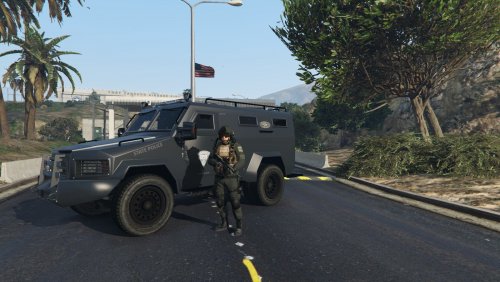
Just a retexture of OFFICER1026's Mass Statie Bearcat skin. Darker variation with details including State Police logos, Max Height and GRV written on it.
Lenco Bearcat (Required)
Little info on the STOP team:
The Massachusetts State Police STOP Team (Special Tactics and Operations) is a well-trained, disciplined, professional tactical team prepared to respond to any crisis in the New England region. Since 1971 the STOP Team has met this responsibility responding to armed barricaded subjects, hostage situations, serving high-risk warrants, dignitary protection and riot control.
- 141 Downloads
Submitted -
My first file up on LSPD:FR. My friend loves using the State Police playermodel and he asked me to make a Mass Statie version of a motorcycle, so here it is. Depending on the feedback I may update it to include more details.
- 236 Downloads
Updated