.gif.fba18a54473705b0720204b1857c75fe.gif)
TrpCharles
Members
-
Joined
-
Last visited
Everything posted by TrpCharles
-
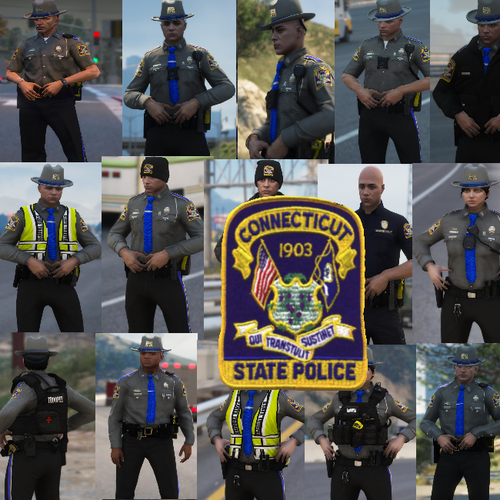 It's a rough draft hat that took time to find and make it's far from easy to create an exact replica, so rather than spend all my personal time creating one campaign hat I made one close enough.... The older model hat is terrible I appreciate the insight , but I rarely miss the fine details unfortunately there is only so much I can do maybe further down the line I can edit it.
- 13 comments
- 5 reviews
-
-
-
-
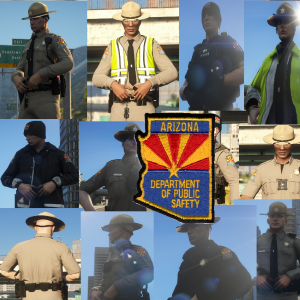 Interesting I must have missed that thank you very much for the feedback and the kind words:).
- 5 comments
- 1 review
-
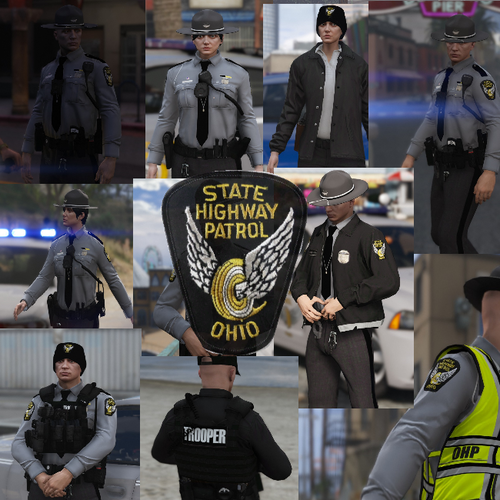 I am working as hard as I can to update everything before I release NEW state's.
- 47 comments
- 11 reviews
-
-

- 1
-
-
-
-
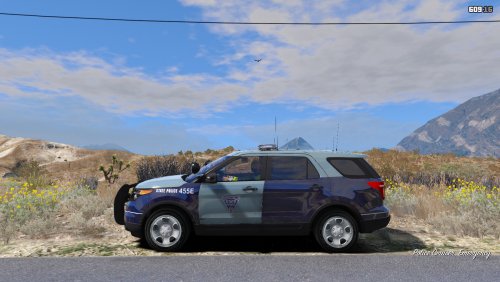 Try toggling extra 11 or 12 in the trainer it worked for me a year ago. The xml was not made for this vehicle however I configured it to be, trust me use your trainer and go to vehicle modification and toggle extra 11 or 12 it should remove it.
- 7 comments
- 2 reviews
-
-
From the album: The Morning Sunset
-
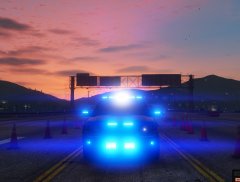
From the album: The Morning Sunset
-

From the album: The Morning Sunset
-

From the album: The Morning Sunset
-
From the album: The Morning Sunset
-
-
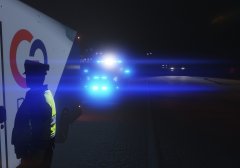
From the album: The Morning Sunset
-
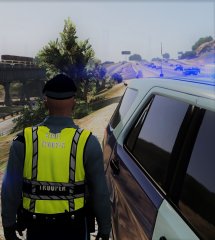
From the album: The Morning Sunset
-
From the album: The Morning Sunset
-
From the album: The Morning Sunset
-

From the album: The Morning Sunset
-
From the album: The Morning Sunset
-
From the album: The Morning Sunset
-
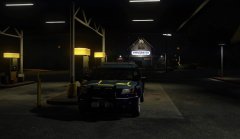
From the album: The Morning Sunset
-

From the album: The Morning Sunset
.thumb.gif.8178193303b96ee8cf1030d73212f4f2.gif)