
jguti
Members
-
Joined
-
Last visited
Reputation Activity
-
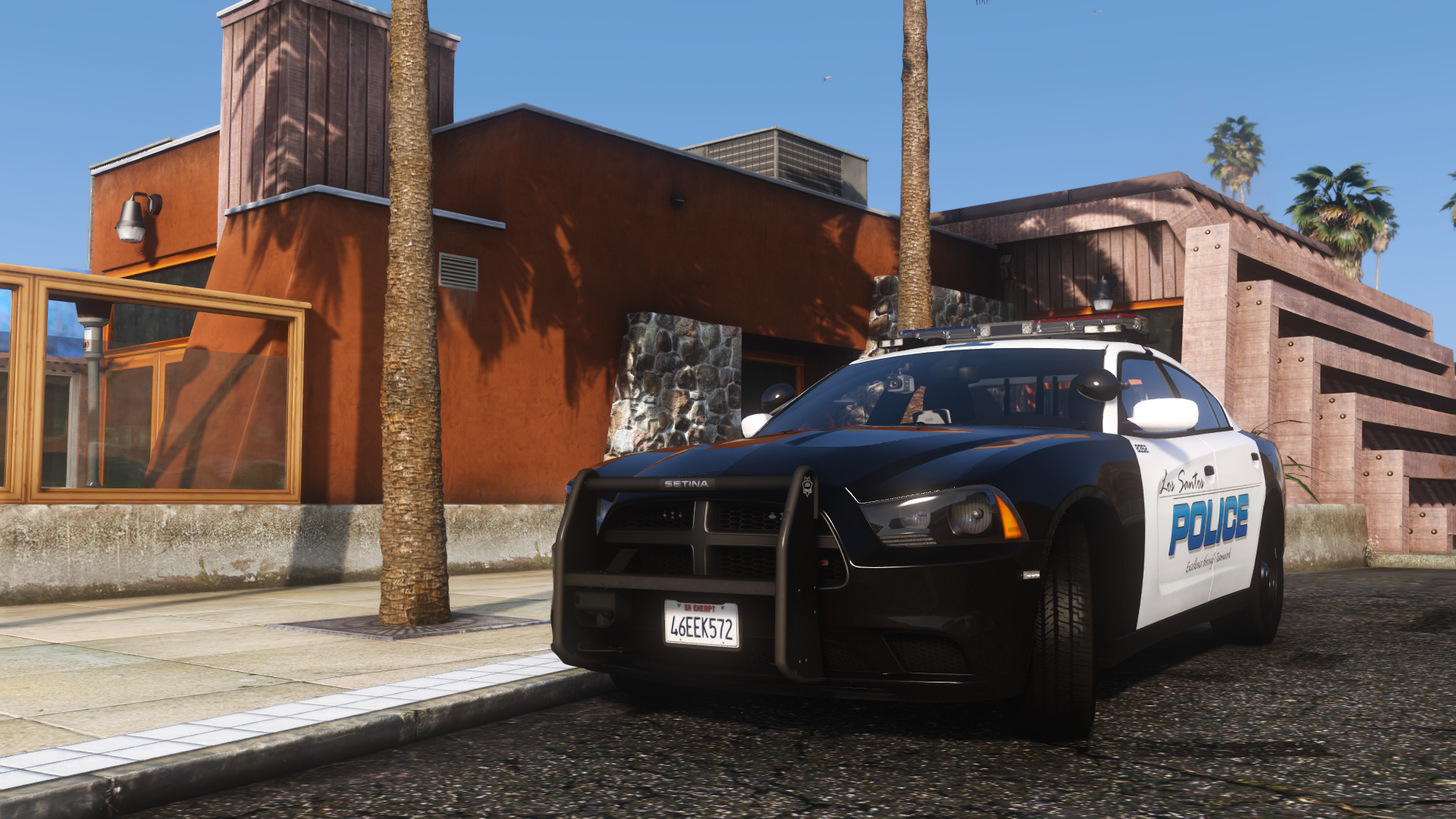
 jguti got a reaction from Maxiden78 for a gallery image, Grand Theft Auto V Screenshot 2021.07.28 - 13.55.27.99.png
 -
 jguti got a reaction from Maxiden78 for a gallery image, Grand Theft Auto V Screenshot 2021.07.30 - 13.41.32.05.png
 -
jguti got a reaction from OfficerEric16 for a gallery image, Grand Theft Auto V Screenshot 2021.07.19 - 23.14.29.19.png
-
jguti got a reaction from OfficerEric16 for a gallery image, Grand Theft Auto V Screenshot 2021.07.19 - 23.13.23.10.png
-
jguti got a reaction from OfficerEric16 for a gallery image, Grand Theft Auto V Screenshot 2021.07.17 - 15.48.39.25New more realistic texture for Coplite lights
-
jguti got a reaction from OfficerEric16 for a gallery image, Grand Theft Auto V Screenshot 2021.07.17 - 15.46.29.43New more realistic emesive texture for MX7000 by Varical
-
jguti got a reaction from OfficerEric16 for a gallery image, Grand Theft Auto V Screenshot 2021.07.17 - 17.26.52.54New glass texture for MX7000 lightbar
-
jguti got a reaction from OfficerEric16 for a gallery image, Grand Theft Auto V Screenshot 2021.07.17 - 17.24.00.32New parking lights showcase
-
jguti got a reaction from OfficerEric16 for a gallery image, Grand Theft Auto V Screenshot 2021.07.15 - 23.45.49.58.png
-
jguti got a reaction from OfficerEric16 for a gallery image, Grand Theft Auto V Screenshot 2021.07.15 - 23.48.36.99.png
-
jguti got a reaction from OfficerEric16 for a gallery image, Grand Theft Auto V Screenshot 2021.07.15 - 23.41.44.55.png
-
jguti got a reaction from Massimo84 for a gallery image, Grand Theft Auto V Screenshot 2021.07.30 - 13.41.32.05.png
-
jguti got a reaction from Malaguista for a gallery image, Grand Theft Auto V Screenshot 2021.07.30 - 13.41.32.05.png
-
jguti got a reaction from Arthagox Modifications for a gallery image, Grand Theft Auto V Screenshot 2021.07.30 - 13.41.32.05.png
-
jguti got a reaction from Hadyfaik for a gallery image, Grand Theft Auto V Screenshot 2021.07.30 - 13.41.32.05.png
-
jguti got a reaction from Malaguista for a gallery image, Grand_Theft_Auto_V_Screenshot_2021.07.26_-_14.37.01.70.png
-
jguti got a reaction from Malaguista for a gallery image, Grand Theft Auto V Screenshot 2021.07.28 - 11.00.21.44.png
-
jguti got a reaction from Maxiden78 for a gallery image, Grand Theft Auto V Screenshot 2021.07.28 - 11.00.32.57.png
-
jguti got a reaction from Maxiden78 for a gallery image, Grand Theft Auto V Screenshot 2021.07.28 - 13.54.46.94.png
-
jguti got a reaction from Maxiden78 for a gallery image, Grand Theft Auto V Screenshot 2021.07.28 - 13.55.07.34.png
-
jguti got a reaction from Malaguista for a gallery image, Grand Theft Auto V Screenshot 2021.07.28 - 13.55.27.99.png
-
jguti got a reaction from Massimo84 for a gallery image, Grand Theft Auto V Screenshot 2021.07.28 - 13.55.27.99.png
-
jguti got a reaction from Malaguista for a gallery image, Grand Theft Auto V Screenshot 2021.07.28 - 11.00.32.57.png
-
jguti got a reaction from Arthagox Modifications for a gallery image, Grand Theft Auto V Screenshot 2021.07.28 - 11.00.32.57.png
-
jguti got a reaction from varicaI for a gallery image, Grand_Theft_Auto_V_Screenshot_2021.07.26_-_14.37.24.96.png
.thumb.png.51bdabade190f0c766d917a6d7465794.png)