
sixium
Friends of LSPDFR
-
Joined
Everything posted by sixium
-
 Wow
Wow -
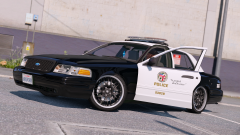 Very nice
 -
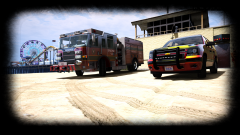
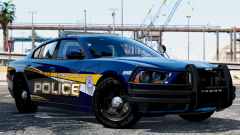 Harbor police! Love the badge =)
 -
-
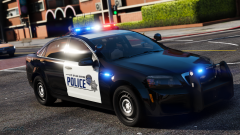 Thanks!!! I just found that link in some earlier gallery images. I had a feeling it was Kane's
 -
WWhere did you get that awesome Caprice????
-
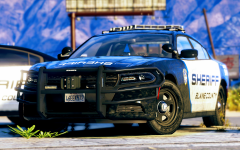
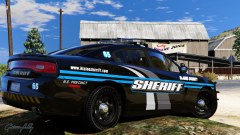 I have to say, this looks better than real-life Chargers to be honest.
 -
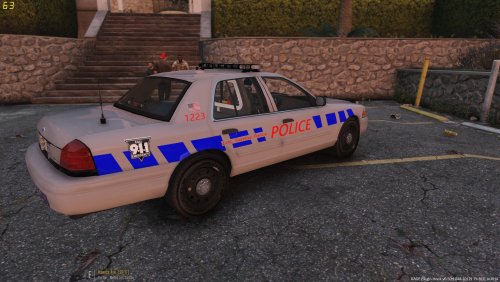 For the flag on the right side of the car, the stars should face the front of the car. As if it's "waving in the wind" as the car moves forward.
 -
-
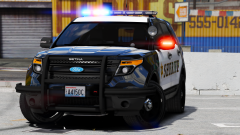 I can't "Like" this hard enough
 -
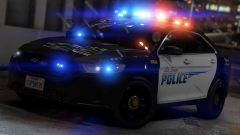 Gallery features need to return specifically for this picture.
 -
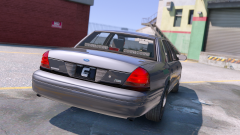 You should keep them in, it'll be fun!
 -
 <3 <3 <3
 -
I believe @Maurice97 is working on that ;)
-
 Nice variation of the Seattle PD patch =)
 -
Part3 is now released! Includes 2016 FPIU, 2015 Tahoe, 2013-16 Impala, 2014 Charger, 2016 Charger. Models above by Thehurk, ALLENjr12, Bxbugs123, thegreathah, and Zach Plays.
-
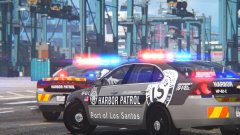 Part3 is now released. =)
 -
From the album: Los Santos Views
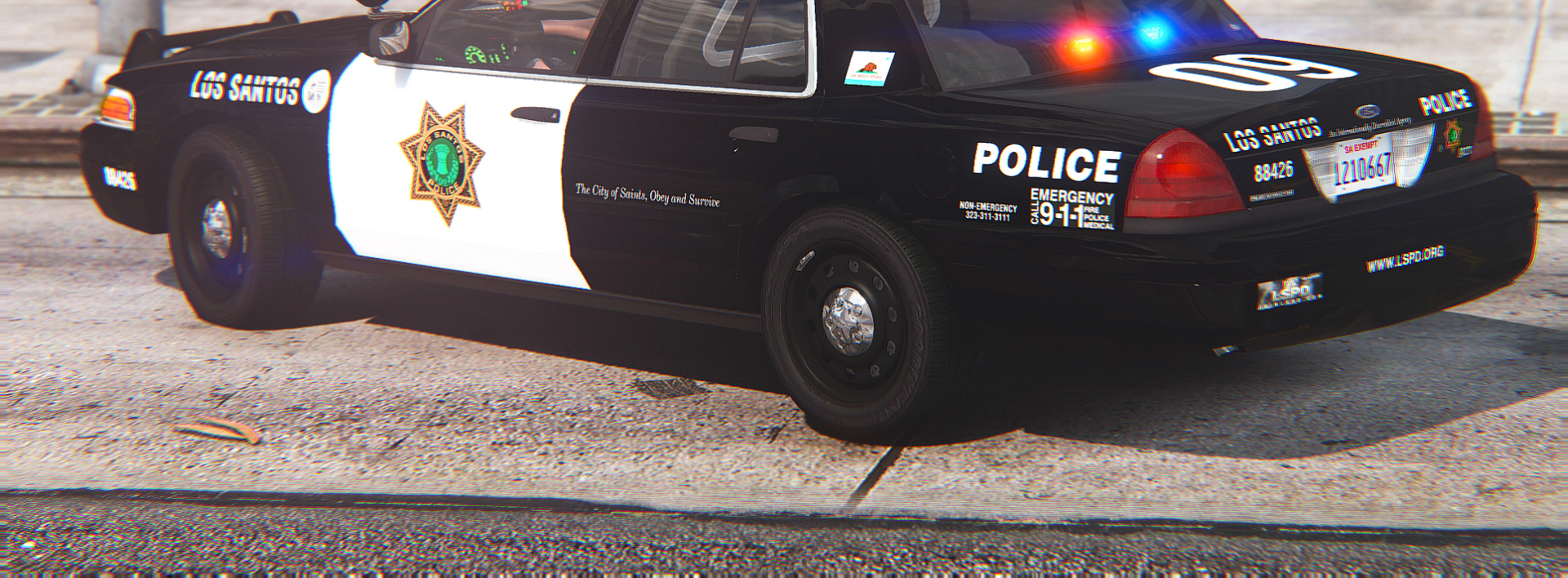
LSPA-HPD Chevrolet Impala 9C1 (OfficerUnderwood template). WIP Impala PPV by Zach Plays (2016 Charger Pursuit in the background by thegreathah). Will be released as a part of Part 3 of my LSPA-HPD pack, tomorrow. -
Nutt's back!!
-
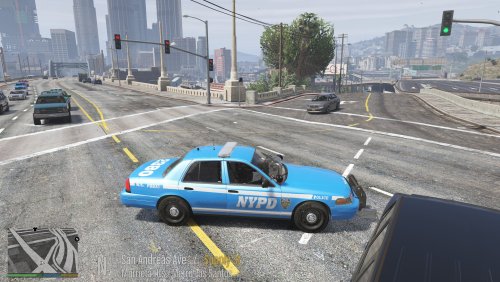 Your unit numbers don't match up. Every car has the same unit number on the side, but none match up to the unit number on the trunk.
- 8 comments
- 2 reviews
-
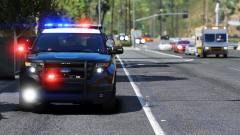 Ha, it's like how I used to take screenshots in GTAIV. But I like the flexibility of the editor, so I'm sticking to it for GTAV, and I use ENB, so a simple PrtSc press is all I need to take uncompressed screenshots whenever, without dealing with Steam.
 -
He's probably running the game in 4K with 2x downsampling (in essence, running the game in 8K, then downsampling it to 4K)
-
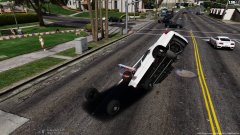 Agreed
 -
Lol. Us texture artists are a dying breed. Pretty soon, probably even getinmybelly will start making models, then we're toast.
-
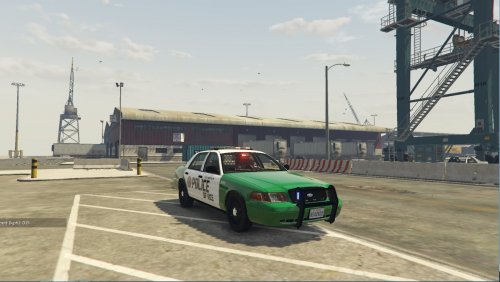 of vice?