
ItsFozzy
Members
-
Joined
-
Last visited
Files posted by ItsFozzy
-
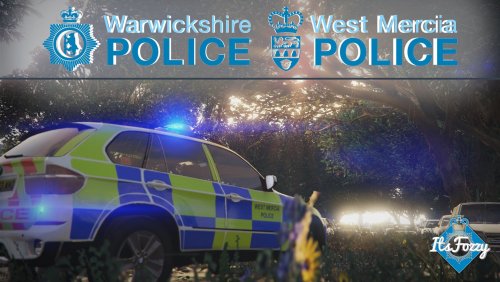
This pack contains most of the vehicles used by West Mercia Police, and by me in my current LSPDFR series.
Here's a list of what's included:
Vauxhall Astra Estate Older BMW X5 E70* Newer BMW X5 2006 Vauxhall Astra* BMW 330d Vauxhall Vivaro Mercedes Sprinter Riot Van Skoda Octavia Dog Car Unmarked BMW 530d Unmarked BMW X5 * Only the skins for these vehicles, due to failed attempts to gain permission to release the models.
SHOWCASE VIDEO
The pack also contains a vehicles.meta, carvariations.meta and visualsettings.dat that include all relevant entries for the vehicles.
Full list of credits, and where to install all the files, are included in the download.
Installation:
Police - x64e
Police2 - Patchday3
Police 3 - Patchday4
Police 4 - x64e
FBI - x64e
FBI2 - Patchday2
Sheriff2 - Patchday3
PoliceT - x64e
Riot - Patchday3
pranger - x64e
Alternatively, just place every YTD and YTF file for every vehicle in...
Grand Theft Auto V\mods\update\x64\dlcpacks\patchday9ng
It doesn't have to be patchday9 - the most recent patchday will work, such as patchday 13. I just used PD9 as this was the latest when I created my mods folder.
- 3,385 Downloads
- 5 Comments
Submitted