Reddington
Members
-
Joined
Everything posted by Reddington
-
From the album: Red's LSPDFR chaos
-
-
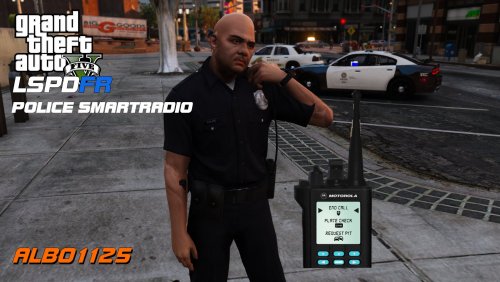 Smart Radio should not be causing you to go off duty. It will give you a notification of "this plugin is outdated", but it'll work. Are you absolutely positive smart radio is the issue? Have you temporarily removed it and tried going on duty then?
- 1,196 comments
- 127 reviews
-
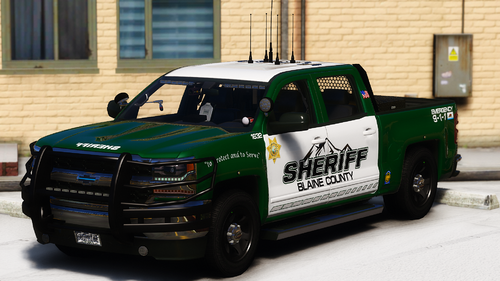 and so begins me slowly requesting more vehicles. 😂 Loving this livery a lot, thanks for redoing it!
- 71 comments
- 17 reviews
-
-

- 2
-
-
Your topic has been moved to GTA V Support, this is not LSPDFR related. Please post in the correct location in the future.
-
Your topic has been moved to GTA V Support, this is not LSPDFR related. Please post in the correct location in the future.
-
I'm not on the newest LSPDFR version, but so far I've not seen an outcry of smart radio not working. Should still work fine.
- 1,196 comments
- 127 reviews
-

From the album: Red's LSPDFR chaos
-
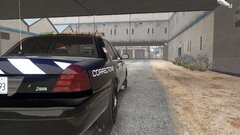
From the album: Red's LSPDFR chaos
-
Your topic has been moved to LSPDFR 0.4 Support. Please post in the correct location in the future.
-
It's not being a hero, it's following Rockstar's terms of use which you agreed to when you downloaded and played the game, in addition to our guidelines which state not to redistribute game files. Your behavior in this thread will be addressed privately, in the mean time I'm going to close this, but you're more than welcome to make a new, non abusive thread if you need help with something else. However, if you have not backed up your game prior to the update, there is no way to revert. If you feel this topic has been closed in error, please report this post.
-
LSPDFR won't crash because SmartRadio is out of date. It will give you a message stating the plugin is outdated, but it will still work.
- 1,196 comments
- 127 reviews
-
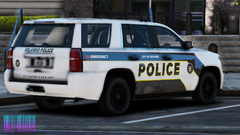 That looks really good!
 -
Bejoljo recently updated his plugins to work with the newest LSPDFR. I'd go ahead and disable the option Officer 81 mentioned and see if it helps.
-
 That is hot AF! Have you considered an additional livery for CVE?
 -
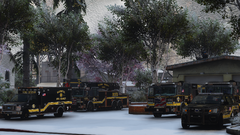 That is sexy!! Love the black/yellow.
 -
This is what you're missing. In the future, please make a topic instead. 🙂 We're trying to stray away from update announcement threads turning into support.
-
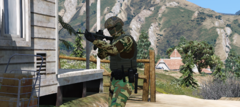 Loving this. Link?
 -
Yes it will work with the Rockstar launcher, however you will need to launch GTA first. Once on the home screen that has you choose singleplayer or online, hit singleplayer. Then alt tab out and start Rage. Installing LSPDFR and Rage is very, very easy, just drag and drop. There are instructions in the download of both mods, but if you need more help, there are plenty of tutorials on Youtube. 🙂 In addition, we have a dedicated support section if you need more help.
-
LSPDFR and GTA mods often get false flagged. Add the GTA V folder as an exception in your AV.
-
-
This topic has been moved to the appropriate forum. Please post in the correct location in the future.
-
In addition to the above, dropping 10-20 frames when going on duty is normal for most people. The only people who don't see fps drops are the ones who either spend 2-3k plus on a beefy PC or have little to no callout mods. If the fps loss bothers you that much, the only solution is removing every single LSPDFR plugin and just running stock LSPDFR.
-
It appears that pursuit on the fly was the initial cause of the crash, however it does make mention of Smart Radio's plate checker. Temporarily remove pursuit on the fly and try using the plate checker option a few times and see if it happens again.
- 1,196 comments
- 127 reviews
-
 Hi again, Merry Christmas! Was playing early this morning and had a crash after I was sent a callout, but chose to ignore it. Seem like not accepting it caused the crash. [12/25/2019 4:43:27 AM.663] LSPD First Response: [TRACE] Updating scaleform [12/25/2019 4:43:29 AM.040] LSPD First Response: [TRACE] Updating scaleform [12/25/2019 4:43:29 AM.550] LSPD First Response: [TRACE] Updating scaleform [12/25/2019 4:43:30 AM.244] LSPD First Response: [TRACE] Updating scaleform [12/25/2019 4:43:30 AM.821] LSPD First Response: [TRACE] Updating scaleform [12/25/2019 4:43:30 AM.822] LSPD First Response: [TRACE] Updating scaleform [12/25/2019 4:43:30 AM.824] LSPD First Response: [TRACE] Updating scaleform [12/25/2019 4:43:33 AM.779] LSPD First Response: (RandomCheck): Callout Not Accepted [12/25/2019 4:43:33 AM.833] LSPD First Response: [12/25/2019 4:43:33 AM.833] LSPD First Response: ============================== [12/25/2019 4:43:33 AM.833] LSPD First Response: UNHANDLED EXCEPTION DURING GAME FIBER TICK [12/25/2019 4:43:33 AM.833] LSPD First Response: ------------------------------ [12/25/2019 4:43:33 AM.833] LSPD First Response: Origin: Game fiber "<UNNAMED THREAD>". [12/25/2019 4:43:33 AM.833] LSPD First Response: ------------------------------ [12/25/2019 4:43:33 AM.833] LSPD First Response: Exception type: System.NullReferenceException [12/25/2019 4:43:33 AM.833] LSPD First Response: Exception message: Object reference not set to an instance of an object. [12/25/2019 4:43:33 AM.833] LSPD First Response: ------------------------------ [12/25/2019 4:43:33 AM.833] LSPD First Response: Inner exceptions: [12/25/2019 4:43:33 AM.833] LSPD First Response: ------------------------------ [12/25/2019 4:43:33 AM.833] LSPD First Response: Stack trace: [12/25/2019 4:43:33 AM.834] LSPD First Response: at copper_callouts.Callouts.RandomCheck.CleanUp() [12/25/2019 4:43:33 AM.834] at copper_callouts.Callouts.RandomCheck.OnCalloutNotAccepted() [12/25/2019 4:43:33 AM.834] at fghH{\,E\.}8;An\&DQv# m0<\*<).r2Y`V*C(5k5}aGKi"BYI6k3#"(Object[] ) in E:\GTA V\LSPD First Response\LSPD First Response\Mod\Callouts\CalloutManager.cs:line 352 [12/25/2019 4:43:33 AM.834] at LMS.Common.Timers.DelayedCaller.Process() [12/25/2019 4:43:33 AM.834] at |\*8bX#dtgho_%YDr_mFSalrh".4e\p\B[+cc4>c~Lg2He2EJDD&() in E:\GTA V\LSPD First Response\LSPD First Response\Engine\Main.cs:line 54 [12/25/2019 4:43:33 AM.834] at FU|h{0y/CNTA=8K(cCpjRI!\]$.iE%Y21>8]{9zoj@ZOA4`@RXQ%() in E:\GTA V\LSPD First Response\LSPD First Response\Mod\LSPDFR.cs:line 789 [12/25/2019 4:43:33 AM.834] at Rage.GameFiber.Main() [12/25/2019 4:43:33 AM.834] LSPD First Response: ============================== [12/25/2019 4:43:33 AM.834] LSPD First Response: [12/25/2019 4:43:33 AM.857] LSPD First Response: [FATAL] Forced termination [12/25/2019 4:43:33 AM.859] LSPD First Response: [TRACE] Released 1 entities from DefaultContentManager [12/25/2019 4:43:42 AM.316] LSPD First Response: [INFO] LSPDFR has shut down [12/25/2019 4:43:43 AM.411] LSPD First Response: ============================== [12/25/2019 4:43:43 AM.433] LSPD First Response: ============================== [12/25/2019 4:43:43 AM.508] LSPD First Response: All signs removed [12/25/2019 4:43:43 AM.758] LSPD First Response: LSPDFR might have crashed and Police Buddy is despawned [12/25/2019 4:43:43 AM.771] LSPD First Response: STP: EXIT CONTROL PED (FORCED) [12/25/2019 4:43:43 AM.790] LSPD First Response: LSPDFR might have crashed and tow service is removed
- 47 comments
- 11 reviews