Reddington
Members
-
Joined
Everything posted by Reddington
-
Yep, Bejoljo added reagent testing. Interaction+ is no longer needed.
-
This topic has been moved to the appropriate forum. Please post in the correct location in the future.
-
Your topic has been moved to LSPDFR 0.4 Support. Please post in the correct location in the future.
-
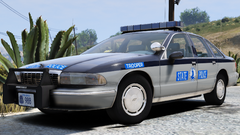 Is it going to be?
 -
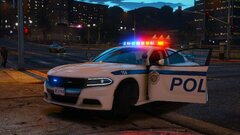
From the album: Red's LSPDFR chaos
-
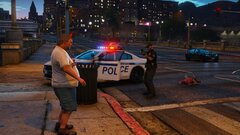
From the album: Red's LSPDFR chaos
-
You'll need to add this in the LSPDFR INI yourself. Ambient.DisableEscapedSuspectEncounter = false
-
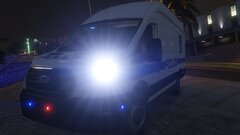 Thanks
 -
From the album: Red's LSPDFR chaos
-
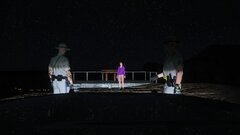
From the album: Red's LSPDFR chaos
-

From the album: Red's LSPDFR chaos
-
From the album: Red's LSPDFR chaos
-

From the album: Red's LSPDFR chaos
-
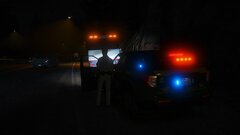
From the album: Red's LSPDFR chaos
-
 Always.
 -
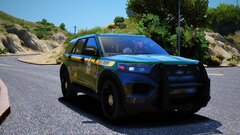
From the album: Red's LSPDFR chaos
-
From the album: Red's LSPDFR chaos
-
Your topic has been moved to GTA V Support, this is not LSPDFR related. Please post in the correct location in the future.
-
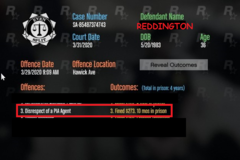 Bring it on. 😉
 -
Then we're both fire, I'm a ginger as well. 😛
-
 Try me!
 -
You're playing with fire. 😛
-
I don't recognize your authority, land lover. 😛
-
You'll have to catch me first. 😉
-