gooface1014
Members
-
Joined
-
Last visited
Files posted by gooface1014
-
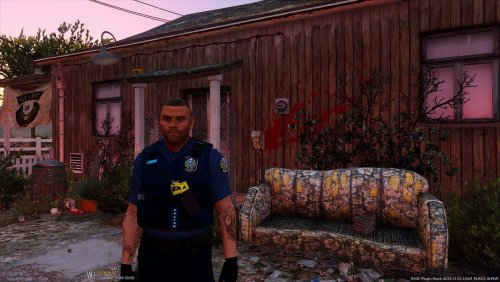
Just a quick Skin i made for Mooses NSW model
Its not even 75% Accurate but i believe its the only one out there
But hope you enjoy and give me Tips
Cheers
Jack.
- 178 Downloads
- 2 Comments
Submitted -
2009 Oakland School Police Dodge Charger Skin
This skin is about 88% Accurate I believe the font is incorrect
Thanks to dunkboi i corrected the skin to school police
This Skin Was Made By Me And Cannot Be Re uploaded On Any Other Website Or Account Without My Permission
Hope you enjoy
Vehicle Used :
- 27 Downloads
Submitted -
2009 Oakland Dodge Charger Skin
This skin is about 70% Accurate I believe the font is incorrect and that the charger is only used for school policing
This Skin Was Made By Me And Cannot Be Re uploaded On Any Other Website Or Account Without My Permission
Hope you enjoy
Vehicle Used :
- 33 Downloads
- 4 Comments
Submitted -
Just found this image online and though it might work with computer plus .
BTW i have not tested it with the mod in-game. So tell me if it works because of my GTA V not working.
To install just drag the files into Grand Theft Auto V\Plugins\LSPDFR\ComputerPlus\backgrounds and replace all the images.
And thanks for downloading .
Recommend using DAMO83s skins
- 29 Downloads
Updated