Gonzy
Members
-
Joined
-
Last visited
Files posted by Gonzy
-
SOUTH CAROLINA STATE TROOPER SKINS for CVPI, Dodge Charger 2012 and Chevy Tahoe 2011 by Gonzy .
HOW TO INSTALL:
DOWNLOAD SPARK IV
OPEN SPARK IV - Select GTA IV - Open the vehicle.img (/cdimages/models)
Browse and select the correct police .wtd or police2 .wtd file that you want to edit
Replace one or more of the police vehicle skins by importing the downloaded .png skin for the correct vehicle and click save in the right corner.
Click on SAVE. and thats it.
Files included:
Tahoe Skin, CVPI Skin, Dodge Charger 2012 skin.
- 476 Downloads
- 5 Comments
Updated -
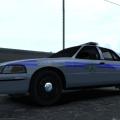
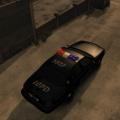
Liberty State Patrol Skin For Dodge Charger based on Georgia State Patrol.
Files Included:
Pictures folder
.
Skins (4 unit numbers- 22,85,113,335)
Readme.
- 61 Downloads
- 5 Comments
Submitted -
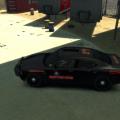
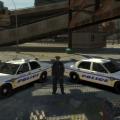
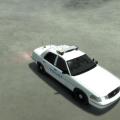
This is skin for CVPI - Liberty City Police - inspired by Georgia Capitol police. by: Gonzy.
- 71 Downloads
- 5 Comments
Submitted -
This is Liberty City Police skin for CVPI inspired by State Capitol Police. by: Gonzy.
- 160 Downloads
- 11 Comments
Submitted -
- 56 Downloads
- 1 Comments
Submitted -
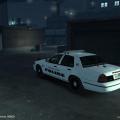
This is LIBERTY CITY Police Skin. Its the first skin ive made. So be nice please :P. Hope ya'll like it.
- 21 Downloads
- 2 Comments
Submitted