
GeekAwesomized
Members
-
Joined
-
Last visited
Files posted by GeekAwesomized
-
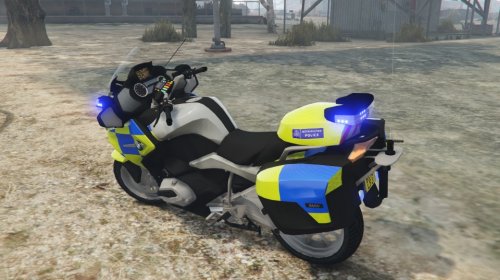
This is an alpha of a skin I am working on however wanted to get it onto the scene!
Install the original model first:
Then replace the files within my download
I AM NOT RESPONSIBLE FOR ANY, ANY! GAME / PC ISSUES!
- 1,191 Downloads
- 1 Comments
Updated -
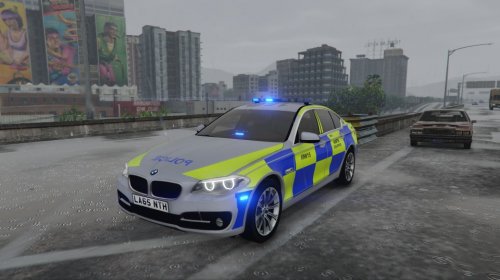
This is my first ever skin for GTA V, the skin is for a Central Motorways Policing Group (CMPG) 530D SALOON. The CMPG police Motorways like the M5 and so on.
I am not responsible for any PC/GAME issues
Installation:
First Install BritishGamer's Pack (link in file)
Using Open IV navigate to PatchDay 4ng and find police 2
Click Edit Mode
Drag And Drop the .YTD & Hi_YTD from the 'files' folder into open iv
------------------------------------------------------------------
© 2016 GeekAwesomized
Thanks to Britishgamer88 for making the model
------------------------------------------------------------------
Subscribe to my youtube channel for British Lspdfr videos here:
https://www.youtube.com/channel/UC7QbHHsX9XegJO86OZSssOg
-------------------------------------------------------------------
Please Do not upload to other Places without my permission
- 149 Downloads
Updated