


Izhevsk
Members
-
Joined
-
Last visited
Everything posted by Izhevsk
-
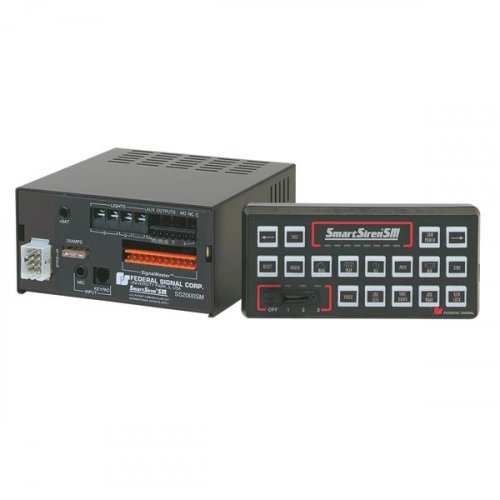 Yeah man, just make a quick 30 sec video showing the siren tones and horn, not 30 mins of gameplay. I'll give this a try though, sounds nice.
- 6 comments
- 1 review
-
Strangely enough, for me at least, whenever I download the 0.27 RPH files from their site, they are always corrupted. 0.26 works like a charm for me though. Anyway, I figured it out. It was the coroner mod all along.
-
Well, weapons in game are actually solid objects with their own geometry, meaning, they will stop bullets. Back in GTA IV you could shoot weapons out of the hands of AI. So, my theory is, if you were to replace one of the useless melee weapons with this model (broken bottle comes to mind), give it the correct positions, it would actually work as intended. Stopping bullets, maybe even melee attacks from peds. I don't know if you could animate your character to attack with it, he might just use the lunging stab motion which would look weird. Either way, it's worth looking into.
-
-
-
-
-
-
-
-
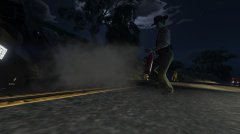 A deputy assists local EMS in extinguishing a vehicle fire
 -
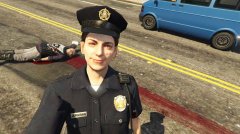 An LSPD officer takes... a crime scene photo?
 -
-
-
-
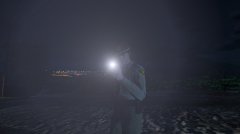 LSSD deputies are allowed to make modifications to their duty weapons. This deputy chose a blinding light.
 -
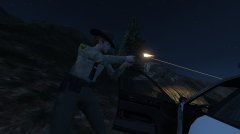 A sheriffs deputy throws some hot lead down range towards the bad guys
 -
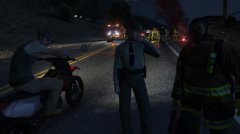 A local citizen shows his opinion of law enforcement as LSSD deputies and LS firemen clear an accident scene
 -
-
-
-
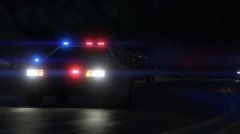 A Los Santos Sheriffs Department Vapid Stanier pursues a suspect
 -
-
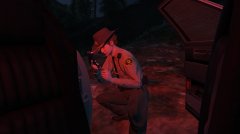 A deputy reloads her firearm while taking cover and avoiding fire from a suspect
 -




