
ALLENjr12
Members
-
Joined
-
Last visited
Everything posted by ALLENjr12
-
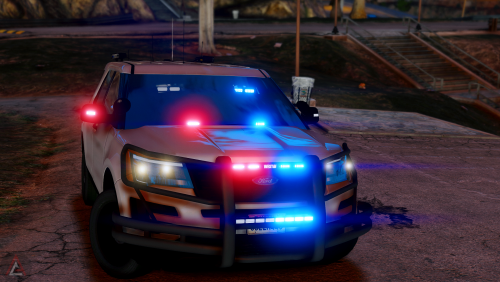 im sure there is a way but unfortunately I don't know how too do that,you can try looking in the support section
- 36 comments
- 14 reviews
-
-
I did add lights to the rear setup,next to the license plate...and l00k at the 8th picture and you will see
- 36 comments
- 14 reviews
-
-
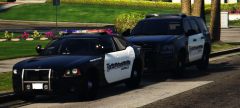 And thank you for all the amazing cars you made!From all the hard work I've seen from you,you deserve it 👍
 -
-
-
yes,I put in the window template if u wanna change it try replacing the template.png too ^ I'll update it later to add more lights to the rear setup 😂 A mix of everything..redux,MVGA,NVR,visual V
- 36 comments
- 14 reviews
-
-
IM GONNA STOP BEING LAZY....🤦♂️AND RELEASE STUFF! THE WINDOW TINT WAS JUST MY PREFRENCE AND YOU CAN CHANGE IT IF YOU LIKE
- 36 comments
- 14 reviews
-
-

-

- 16
-
-
-
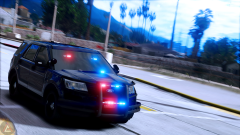 it by me and it's not released yet,srry
 -
-
-
-
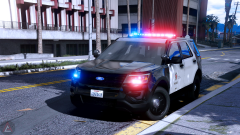
From the album: |L.S. Nightlights |
© ALLENjr12
-
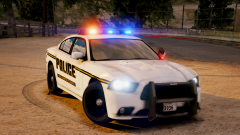
From the album: |L.S. Nightlights |
© ALLENjr12
-
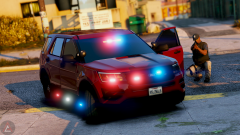
From the album: |L.S. Nightlights |
© ALLENjr12
-
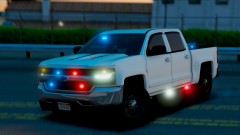
From the album: |L.S. Nightlights |
© ALLENjr12
-
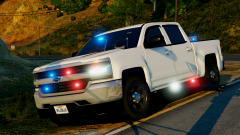
From the album: |L.S. Nightlights |
© ALLENjr12
-
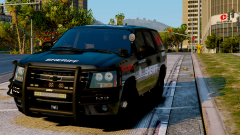
From the album: |L.S. Nightlights |
-
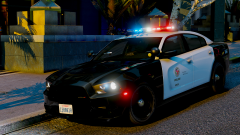
From the album: |L.S. Nightlights |
© ALLENjr12
-
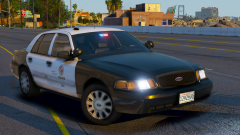
From the album: |L.S. Nightlights |
© ALLENjr12
-
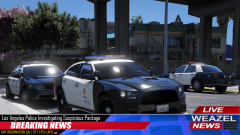
From the album: |L.S. Nightlights |
© ALLENjr12
-