Aoso0769
Members
-
Joined
-
Last visited
Files posted by Aoso0769
-
THIS IS ONLY THE TEXTURE FILE NOT THE MODEL FILES
Please review
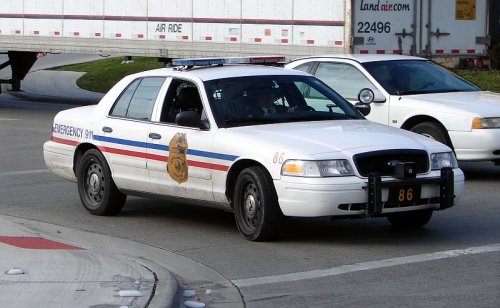
Just a simple reskin for the 2011 CVPI to make it look like the Columbus Police Department
Check out the Federal Signal Smart Siren by GravelRoadCop to go with this car as I think it goes great with it.
Make sure to extract the files from the ZIP folder
Special thanks to Yaboiicam for the skins...
You can find the unmodified version of the 2011 CVPI here at https://www.gta5-mods.com/vehicles/2011-ford-crown-victoria-police-interceptor-san-andreas-highway-patrol
• Model is Ford Crown Victoria from Driver SF, converted to GTA IV by F5544, modified by KevinDV and Cj24
• Wheels from NFS:MW and converted by trewq34, Textures by GreenAid
• Grille by GeorgieMoon, Seats by Schaefft
• Steering Wheel by EVI. Modified to have Logo, Horn, & Airbag badges by OfficerUnderwood
• Gauges & Air Unit by Grimm, Radio by OfficerUnderwood
• Ford FlexFuel badge made by TheGTAMitch
• GTA V Lightbar by R*, textures edited by OfficerUnderwood
• GTA V Lights by R*, modified by OfficerUnderwood
• Spotlights by NFS then converted to IV JewishBanana
• Radar & Console by Bueno, edited by OfficerUnderwood
• CHP megaphone by Buttlamo
• CHP Rambar by Freakingmusket, Grimm, and Reckless
• XPL2500 by Evancornelius, Siren Box & BCD996XT by SheriffVanDyke, & Toughbook by Ridgerunner
• Parts ported by OfficerUnderwood of Blue Exorcist Designs
- 144 Downloads
- 2 Comments
Updated