




ScrimpyData
Members
-
Joined
-
Last visited
Everything posted by ScrimpyData
-
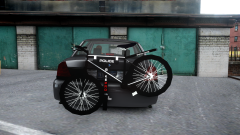
From the album: Scrimps Mods
I made this simple bike rack in 3DS Max (First ever model I made with 3DS Max) The bike rack is 440 polys© ScrimpyData
-
I bought... I'm broke :(
-
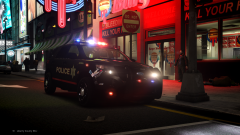
From the album: Scrimps Pics
Skin by kode103 :D -
Those are some nice looking road textures! :)
-
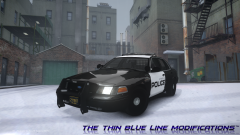 :o I thought I put it in there... Damned
 -
From the album: Scrimps Mods
Skin by Kode103 -
That's some nice work there ;)
-
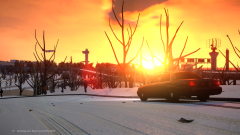 CryENB V3 :)
 -
I know they have been pulled off the production line... But there's no need to be so serious about that, right? Or does everyone always need to only put the newest cars in their game?
-
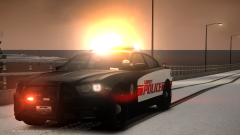
From the album: Scrimps Mods
Model is based off St. Ann PD -
From the album: Scrimps Mods
One lucky LCPD officer got to take the new K9 CVPI for a test drive! -
Got a headache right after watching the video! 5/5 :D Downloading it right now xD
- 30 comments
- 16 reviews
-
-

- 1
-
-
Thanks :D
-
Ahhh... That explains it!
-
The vehicle was already templated.
-
Yup, it's police_sign_1 paint3 [CLR:1]
-
Yes, I just checked it again, and it is on UV #2
-
I just rechecked it, it's completely set up like that, but it still is all black...
-
Tried that... Doesn't work :/
-
So, I've been working on 2 Dodge Charger models, and when I edit the paint1 material used for the texture (skin/template) to paint3, the whole car just turns black... This is with the material on paint1: And this is how it looks when I get a paint3 material: The materials are set up properly as far as I have checked, so I don't know what would cause this issue... Any help would be really appreciated! Thanks in advance: -Scrimpy
-
Conventional (might still change it up)
-
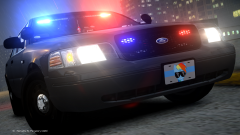 Amazing screenshot!
 -
From the album: Scrimps Mods
Currently remaking my Valor pack. Feedback is always appreciated (Might release if it all works properly) *Skin is a placeholder* -
normally, the rambar should spawn. I'm not sure if there would be any settings involved with it though
- 16 comments
- 3 reviews
-
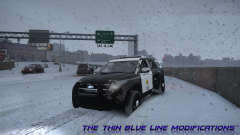
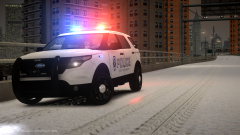
From the album: Scrimps Mods
A "stranded" SDPD FPIU on the Expressway after some rather unusual weather (yes, I was just too lazy to get rid of the snow mod :P) (Yes, there are a few little bugs on the model, I'm going to fix them asap)

