
DrDanthrax99
Members
-
Joined
-
Last visited
Files posted by DrDanthrax99
-
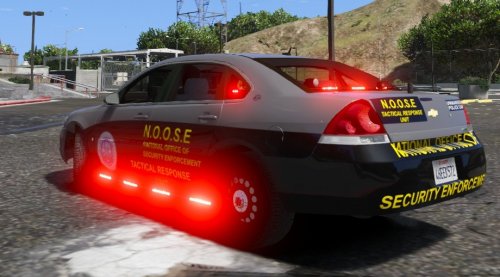
Nothing major, just a NOOSE livery for the new Impala with side runners by Gump.
The file is in x64e.rpf/levels/gta5/vehicles.rpf/fbi.ytd, replace the livery there with the one provided in the download.
Enjoy!
- 55 Downloads
- 8 Comments
Updated -
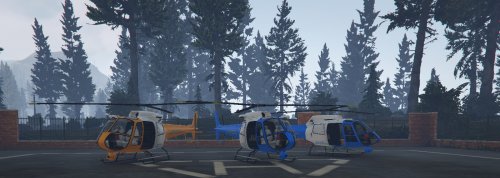
This is simply the polmav model exported and reskinned
with a simple Blaine County Sheriff's Department livery, to help make full use of the new backup system
that comes with LSPDFR 0.3.
It comes with two liveries that appear randomly, a white on light blue and white on gold.
- 257 Downloads
Submitted -
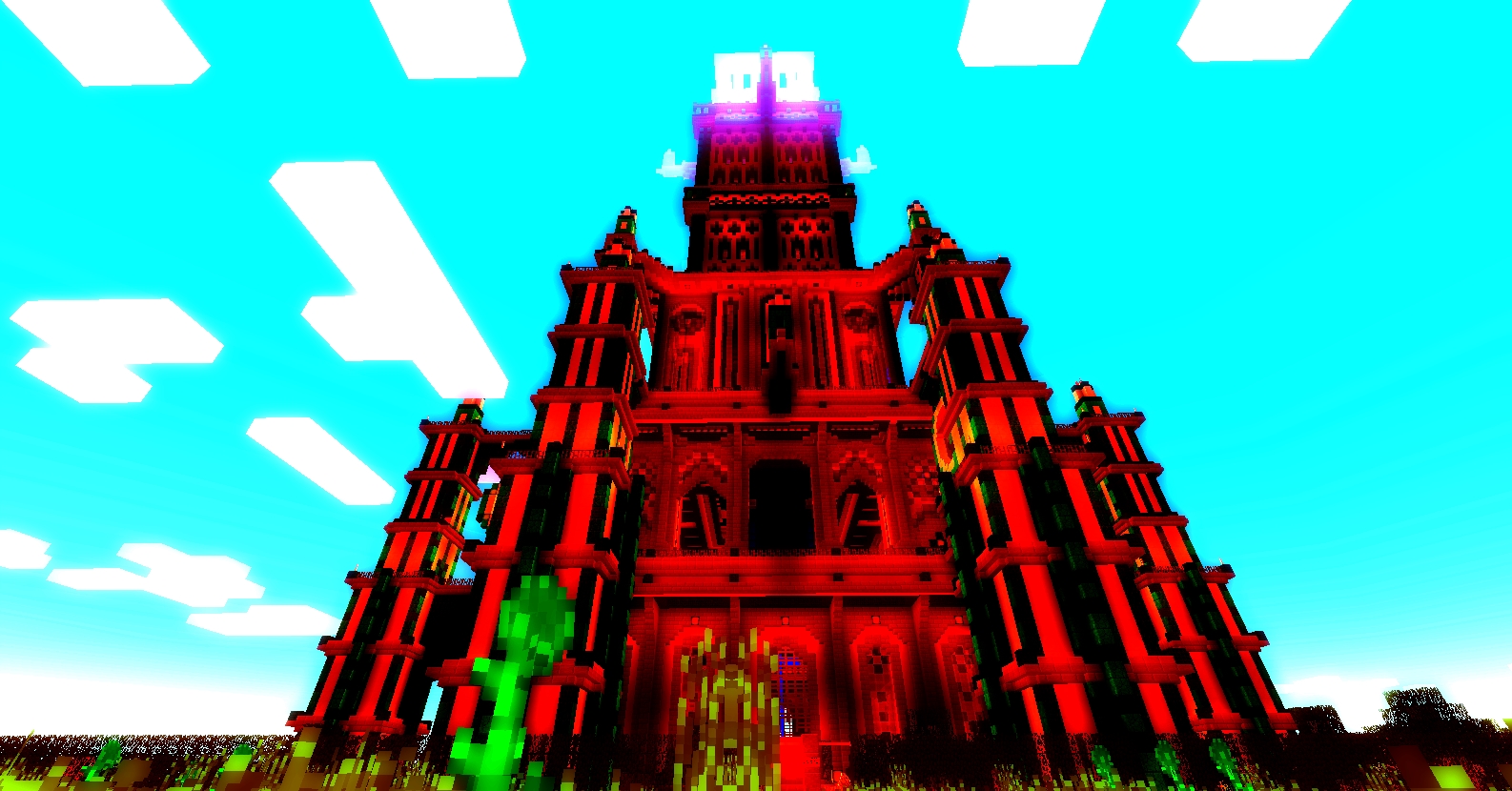
The Los Santos Sheriff's Department is going green! Not with fuel efficiency, with new liveries!
Nothing too spectacular, just made the Sheriff Cruiser a dark green,
and gave the SUV the same color trim.
Figured it would spice up the bland white cruiser, and I just did the SUV to make it match.
HOW TO INSTALL:
Make a backup! I am not responsible if you boof yourself.
Open OpenIV, and start edit mode.
Navigate to:
GTA V/update/x64/dlcpacks/patchday3ng/dlc.rpf/x64/levels/gta5/vehicles.rpf
And replace:
sheriff.ytd
sheriff2.ytd
With the ones provided in the download.
Enjoy!
- 117 Downloads
- 5 Comments
Updated