
CKendrick
Members
-
Joined
-
Last visited
Files posted by CKendrick
-
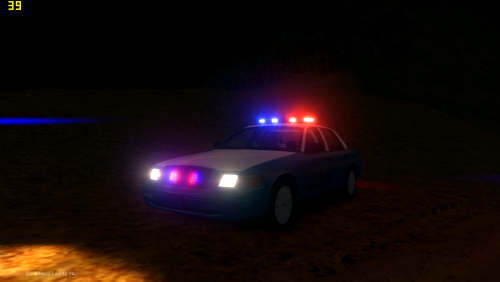
Prince William County CVPI
Credits -
CVPI Wheel Made & converted to GTA IV by Bxbugs123
Main textures by Bxbugs123
-Console scratch made by SheriffVanDyck
-Radio, coffee cup and walkie talkie by Rockstar Games
Panasonic Toughbook CF-31 modeled and converted by Ridgerunner Designs
Panasonic Toughbook CF-31 texture by Ridgerunner Designs
Whelen Edge Modeled & converted for GTA IV by Bxbugs123
Main textures made by Bxbugs123
Whelen ION By CommanderHurricane
- Model is Ford Crown Victoria from Driver SF, converted to GTA IV by F5544, modified by KevinDV and Cj24.
- Wheels from NFS:MW and converted by trewq34, Textures by GreenAid.
- Honeycomb Grill made by KevinDV, Steering Wheel by EVI.
NOTES-
Thank you to paul for helping me model the car!
ION in the grill maybe sticking out, will fix in next update. ALPR's were added, but are usually seen on the newer fleet of vehicles (i.e. Taurus.)
I wanted to add a Ultra Freedom, but the glass texture was not looking to pretty
Credit to Altimaboi27 for the Skin!
Luckyx49 for the screen shots!
- 238 Downloads
- 4 Comments
Updated -
Made for BXBugs Crown Vics.
Simple Skin release of LCPD. Resembles Arlington County Police.
I plan on releasing a CVPI Pack of just Arlington County Police, Look forward to that.
- 41 Downloads
- 3 Comments
Submitted