Starstriker
Members
-
Joined
-
Last visited
Files posted by Starstriker
-
Hello All,
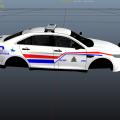
I have made a RCMP Supervisor skin on the request of a fellow member (Techsws).
(Sorry no custom lighting this time)
- 104 Downloads
- 16 Comments
Submitted -
Hello All,
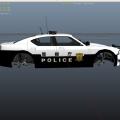
I have here my first ever mod contribution to GTA:IV lcpdfr.
This skin pack is based off the SAHP ELS PACK which i do thank the creator of that pack for making.
All vehicles and authors of the vehicles are also credited for making these amazing vehicles
this pack also includes the custom els setup of the emerglights, emerglights ems, emerglights ems 2, emerglights liberty and sherriff lights
i will include a readme on where the emerglights ems 2, sherriff lights and emerglights liberty go in the wtd of each one and which vehicles get the emerglights ems 2 and which ones dont.
i hope you enjoy.
also if any authors want to contact me about the skins and permissions please dont hesistate to message me about it
tutorial for installing emerglights
when you go into the wtd of each file there should be a row of lights that say emerglights, replace those. some of the vehicles like the declasse granger do not have emerglights ems 2 and sherriff lights. in that case you just want to install the emerglights ems and emerglights liberty
if you havent already guessed the versions of the vehicles i used had the wheelen liberty, you will have to use that version of the vehicle in order for the custom lights to be setup
- 33 Downloads
- 3 Comments
Updated