TheKingPaintball
Members
-
Joined
-
Last visited
Files posted by TheKingPaintball
-
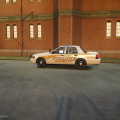
This is my first attempted at making a skin based on a real department that has curved lines in it. I think I did a great job.
Please leave feedback!
This skin will fit any CVPI made by Cj24
Do not upload anywhere without my permission!
- 14 Downloads
- 1 Comments
Submitted -
Lets Take a Look: http://youtu.be/tEl0T67Nptk
Car Model
- Model is Ford Crown Victoria from Driver SF, converted to GTA IV by F5544, modified by KevinDV and Cj24.
- Wheels from NFS:MW and converted by trewq34, Textures by GreenAid.
- Honeycomb Grill made by KevinDV, Steering Wheel by EVI.
Light Bar (Whelen Edge 9000)
- Whelen Edge Modeled & converted for GTA IV by Bxbugs123
- Main textures made by Bxbugs123
Spotlight
- Spotlight made by Cj24.
CVPI Cage
- All credits go to Officer Spike for textures and Scratch Modeling
Rockwell Collins Laptop
- Rockwell Collins Laptop Made & Converted by Bxbugs123
- Textures By Bxbugs123 & DoTTGaMMa
Dashcam
- Original Model by Rockstar Games.
- Modified, and converted by Sergiyj
All proper credit given for each item.
- CheezyTheNerd
Textures: TheKingPaintball
- 6 Downloads
Submitted -
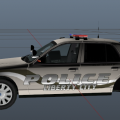
This is my first Skin that I have made in a long time. It is a Liberty City Police Department K9 unit CVPI. Please give me your feedback:) Please do not reupload anywhere unless you have my permission.
Model/Template: Cj24 CVPI
- 73 Downloads
- 1 Comments
Submitted