Bluethefurry
Members
-
Joined
-
Last visited
Files posted by Bluethefurry
-
Heya Guys,
Today I want to show you a Skin I made, its for DBock's CVPI Model.
The Design is pretty self explainetory, see Screenshots.
Link to DBock's Awesome Carpack
NOTE: This mod is EXCLUSIVELY MADE for lcpdfr.com AND gta5-mods.com. You are not allowed to Distribute my mod anywhere else! Developer Note: If you want to change my Skin, feel free to, the Template is in "Texture Files\Paint.net Project\yellowcab.pdn".
You can re-release your Edited version ANYWHERE, just Credit me for the Original Texture!
- 88 Downloads
- 6 Comments
Updated -
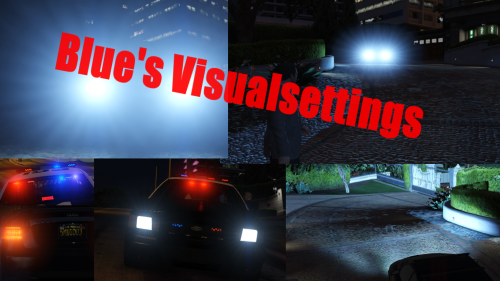
This is a remake of a Visualsettings mod I made a while ago, but never bothered uploading it, and eventually lost it.
What this Visualsettings mod does:
Brighten the Interior lights
Brighten the Coronas of the Car lights
Makes the Light on the ground from the Headlights bigger & brighter.
Brightens the Blinkers and Reverse lights a little bit
Brightens the Plate lights a bit.
NOTE:
This mod was made with an Legit copy of Grand Theft Auto V, installation and Compatiblity may vary from wich version you are using
If you have suggestions or bug reports please leave them in the Comments!
Installation
CREATE BACKUPS FIRST!
Using OPENIV: add my visualsettings.dat to common.rpf/data AND update/update.rpf/common/data
And thats it, have fun!
- 246 Downloads
Updated