


WassiRossi
Members
-
Joined
-
Last visited
Everything posted by WassiRossi
-
without changing skin i fixed my self !!! PROBLEM FIXED !
-
This helped for changing logo , but i want to rename the default name 'IPS Community' yes i am trying to name community by renaming default ' IPS Community ' on upper side on left .
-
i don't get it , please help here i want to change 'IPS Community' to my own , for example : how did you change 'IPS Community' into 'LCPDFR 1.0' on left top ? above Name , messege .
-
building my own community for music ,
-
i don't see how to rename name 'IPS Community' to my own ? where is the section to change is on Admin CP
-
Thanks , Fixed !!!
-
Whenever i get call outs like , drunken ped , shots fired , etc... before i reach there it says " Scene Cleared " . even i never get a chance to see whats going on , every time i accept & go to scene , before i get to point scene get cleared , is it any bug or what ?
-
.NET FRAMEWORK 4.5 is important ?
-
Case,Report,Evidence...
-
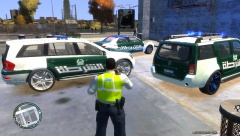 my favourite cars ;)
-
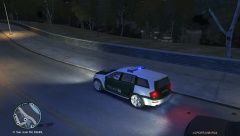 Night Patrol
-
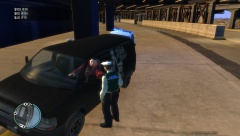 Drunken Drive.
-
 Boastful motorcyclist's 170 mph joy ride ends in arrest.
-
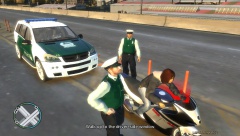 No helmet ? huh ?
-
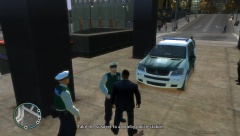 Arrest men in connection with credit card scams, identity theft .
-
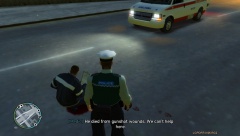 Finally , Report was .....
-
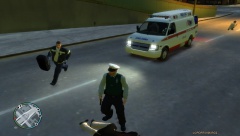 Requested Medic Service for a Pedestrian ...
-
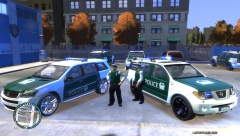 get to work with partner Officer mahmood .
-
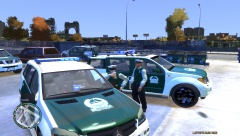 Having Coffee before patrol .
-
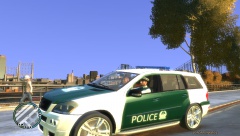 ( On Duty ) �ي الخدمة
-
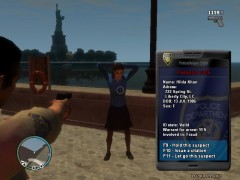 Fraud arrested .
-
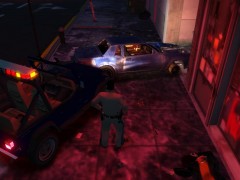 suspect dead
-
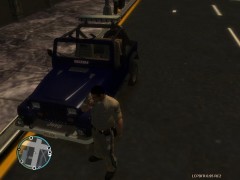 Prank Call
-
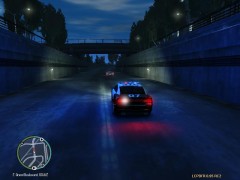 Chasing Lamborghini.
-
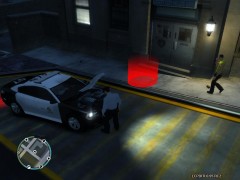 Found a rat in hood . lol
-
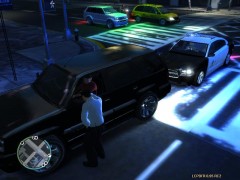 Terrorist Arrested.
-
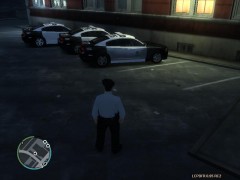 my car is little Dirty , need to clean up.
-
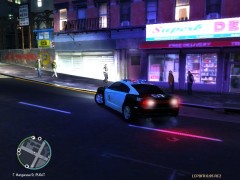 My New Dodge
-
 Strange Scenes.
-
-
From the album: Dubai Police Case File
-
From the album: Dubai Police Case File
-
From the album: Dubai Police Case File
Was fined for drunk driving after running a red light . -
From the album: Dubai Police Case File
After being pulled over for speeding, a motorcyclist clocked traveling at speeds up to 170 miles per hour on the Diera Dubai reportedly was anything but remorseful. -
From the album: Dubai Police Case File
Fined 100 Dirhams It’s something no parent wants to hear: “This is the Dubai Police Service calling, your son has been in an accident.†-
From the album: Dubai Police Case File
Arrested men who allegedly used stolen identities and fake credit cards to purchase products worth thousands of dirhams. -
maybe , lol
-
Go to ?do=embed' frameborder='0' data-embedContent>>h?do=embed' frameborder='0' data-embedContent>>ttp://www.lcpdfr.com/topic/12353-list-of-mods-to-use-with-lcpdfr-with-links/
-
Needless .
-
Incase if you using Pirated Game , That may be the case, but we don't support pirated copies, so if anything stops working and you need help you won't receive any support.
-
From the album: Dubai Police Case File
-
From the album: Dubai Police Case File
Investigating Area & waiting for Result from Doctor. -
From the album: Dubai Police Case File
-
From the album: Dubai Police Case File
-
From the album: Dubai Police Case File
such a Calm day. -
Thank you so much Mustu , fixed ! +1 for you

