
sjain
Members
-
Joined
-
Last visited
Files posted by sjain
-
Hey there!
Common to new users of LSPDFR, and people re-doing their game installs, is the conflict of keys / buttons between LSPDFR plugins. There are a lot of popular LSPDFR plugins on this site, which are of very high quality.
However, if you just install them without changing any keys, you will often find that you don't know what keys to press in game, or the keys you do press usually conflict with different plugins or game keys.
I had this issue as well, and it really ruined the experience for me and I ended up not using many features and it was a total mess. It takes so long to do this (at least for me).
So I made this document. Please ignore lack of colour or fun. I just want to push this out to the community as quick as I can.
Main Features
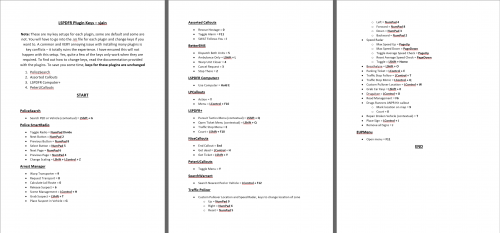
Simple document with simple formatting (not suggesting that the opposite is a bad thing) Easy to print, low on ink Some keys have been changed to be easier to use and/or so they do not conflict with each other. Available in three formats: .docx for Microsoft Word .pdf for Google Chrome or Adobe Reader .rtf for WordPad (comes with windows) for the convenience of those who cannot afford Microsoft Word / Office.
That's it. There is not much else to say.
Full list of plugins in the document:
PoliceSearch by FtDLulz
Police SmartRadio by Albo1125
Arrest Manager by Albo1125
Assorted Callouts by Albo1125
BetterEMS by PNWParksFan
LSPDFR Computer+ by PieRGud
LPCallouts by LowRid3r
LSPDFR+ by Albo1125
NiceCallouts by nicedude80
PeterUCallouts by PeterU
Search Warrant by DarkMyre
Traffic Policer by Albo1125
EUPMenu by PieRGud
(Note to developers: please don't be sad if your plugin isn't in here. I'm a student with little time and am installing more plugins, but the rest have not been updated recently and I don't have time to test them. I will someday. But that is the only reason)
Other highly recommended documents:
LSPDFR 0.3 Control Guide by OfficerSquare
The "DEFAULT CONTROLS (ELS-V).pdf" file in the "DOCUMENTATION" folder of ELS for GTA 5 by Lt.Caine
Printing:
I highly recommend utilizing the "Pages Per Sheet" option. This means that you save on printer paper by having all the pages on one page, but only if you can read small text.
For ELS, I used snipping tool and pasted it in Word, then printed. For OfficerSquare's LSPDFR 0.3 Control guide, I used my printer's options.
Microsoft Word (.docx download) click on the "Printer Properties" button and look through the window that appears. Unfortunately I cannot guide you further as there are huge differences between printers. Remember that pressing the "OK" button doesn't print but only saves settings (a mistake of mine).
Google Chrome (.pdf download) hold the CTRL key and tap P once. Then in the window that appears, click on "Print using system dialogue". After that, click on "Printer Properties" and look through the window that appears. Unfortunately I cannot guide you further as there are huge differences between printers. Remember that pressing the "OK" button doesn't print but only saves settings.
WordPad (.rtf download) hold the CTRL key and tap P once. Then in the window that appears, click on "Printer Properties". After that, look through the window that appears.
For all these points, unfortunately I cannot guide you further as there are huge differences between different printer models and brands. Remember that pressing the "OK" button doesn't print but only saves settings.
I hope this resource was helpful to you!
Feel free to ask questions in the comment section.
- 14,998 Downloads
- 7 Comments
Updated -
NOTE: The images on this website are at a lower resolution than the actual mod as the max size per image is 2 MB.
Installation:
1. Copy the "LoadingScreens" folder into your GTA 5 game folder.
e.g. C:\Program Files (x86)\Steam\steamapps\common\Grand Theft Auto V
2.
a) Download RagePluginHook from http://ragepluginhook.net/Downloads.aspx and install by copying the files indicated by the readme.txt file to the game folder.
b) Launch ragehook by running RAGEPluginHook.exe.
c) Then, just under the logo that appears, click the silver cog for settings.
d) Go to the "settings" tab. Make sure the "Disable Custom Loading Screen" option is NOT TICKED.
e) Still in the settings tab, make sure the and the "Enable Custom Background for Loading Screen" option is TICKED.
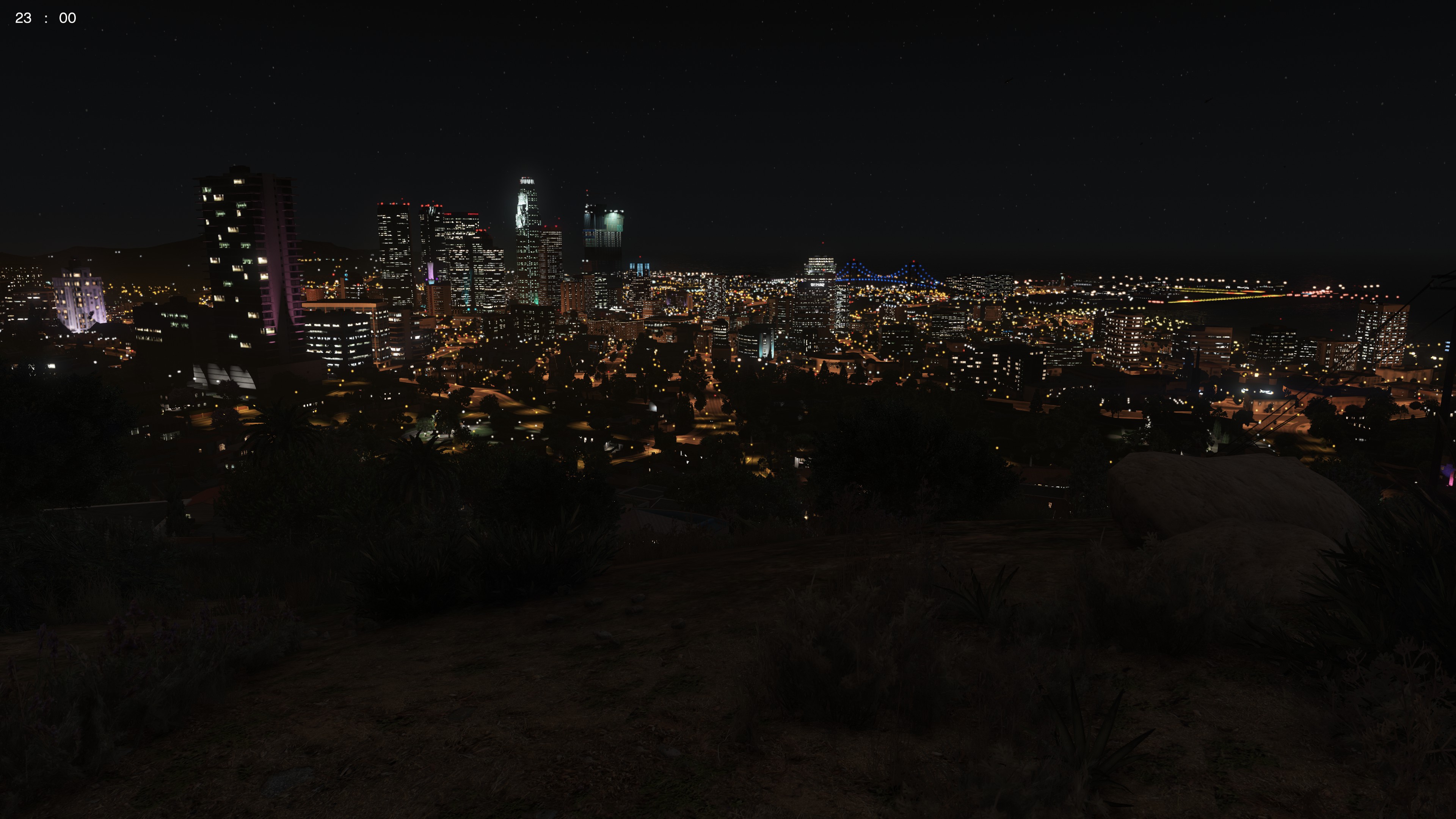
Simple screenshots of various GTA 5 locations at 4K Resolution to replace the default GTA 5 Loading Screens.
I put these together quickly because I didn't like the default loading screens, and I couldn't find any simple screenshots of the GTA 5 world in high quality anywhere as loading screens. I made these as a simple substitute for the default loading screens myself, but I decided to upload them as they aren't many online. I should update these with better screenshots soon.
To:
- Change the time
- Change the weather
- Disable HUD and Radar
- Make player invisible
Simple Trainer for GTA V was used.
For the graphics, I used:
VisualV with the RadianceV option only.
4K Bokeh Overhaul
L.A. Roads
L.A. Roads Patch
NOTE: If OpenIV gives a blue error message window after or during the installation of L.A Roads or the L.A. Roads patch, the mods folder has become corrupted. You have no option but to delete your mods folder and re-install. Try not to use your computer while the roads are installing. It should work most of the time. But keep a pair of fingers crossed :)
Enjoy!
A copy of this text is available in the archive as "ReadMe.txt"
- 133 Downloads
Submitted -
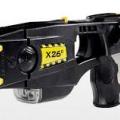
Replaces the taser sound in LCPDFR.
How to install the taser (if it didn't get installed)
Preview:
- 5,027 Downloads
- 10 Comments
Updated