Blu2213
Members
-
Joined
-
Last visited
Everything posted by Blu2213
-
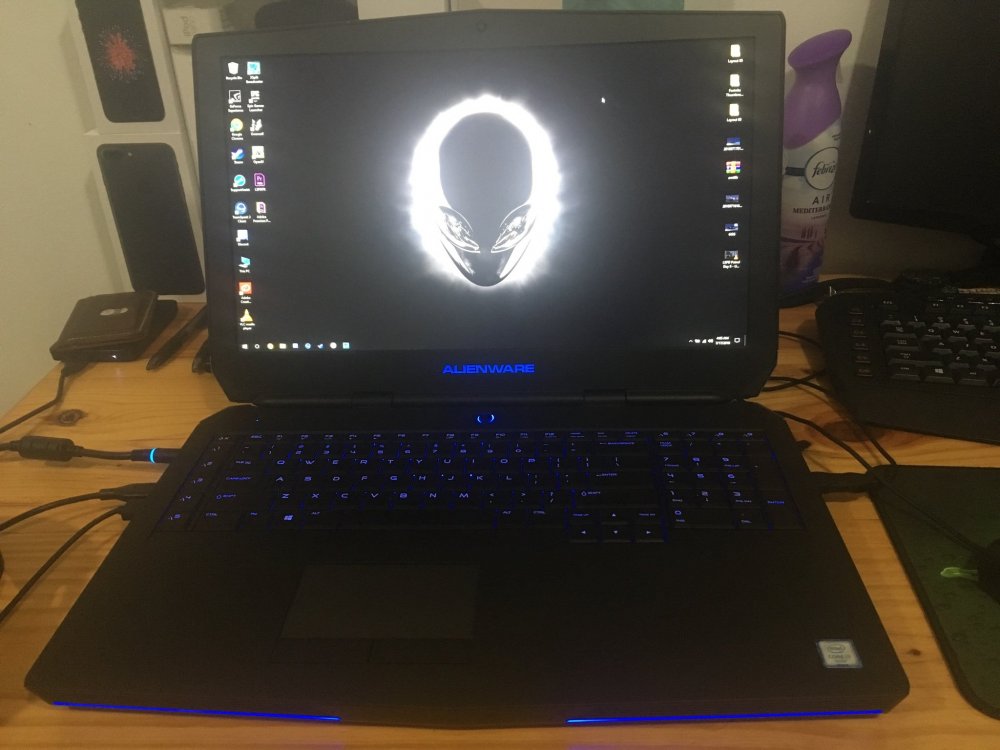
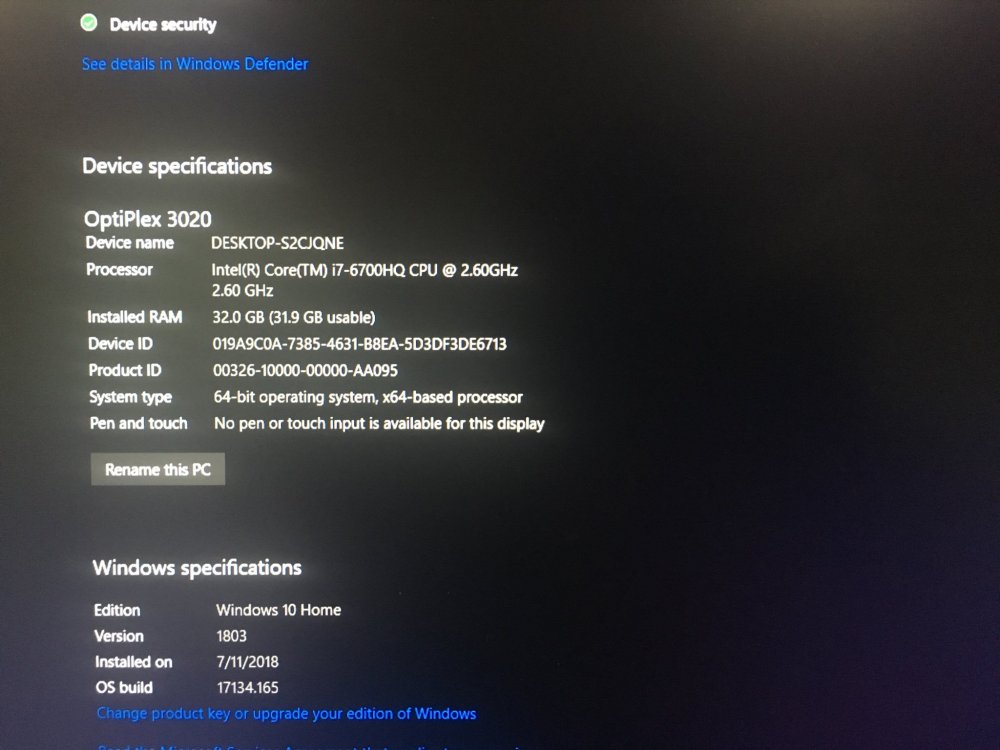
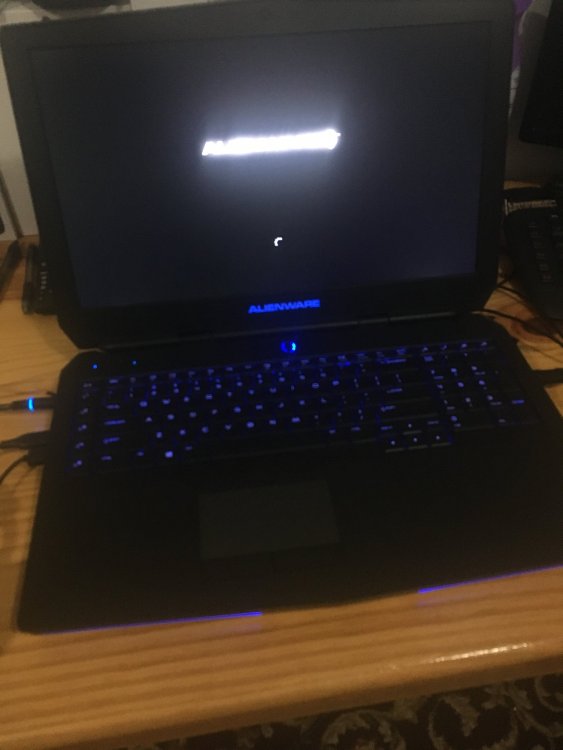
Build Name Alienware 17 R3 Laptop Operating System Microsoft Windows 10 Home 64 bit Case Alienware Laptop Case Motherboard Dell's board Processor Intel i7-6700 HQ 2.9GHz 3.5Ghz Turbo (Skylake) Quad Core hyper threaded to 8 cores Memory Samsung 32 GB DDR4 Graphics Card(s) Nvida Geforce GTX 980M 8GB GDDR5 (Used only for games and high power apps) Intel HD Graphics 620 (Used for the display only) Storage Drive(s) ScanDisk 128GB SSD M.2 Seagate 1TB 7200 HDD Removable Drive(s) Western Digital 1TB HDD Power Supply 240 Watt AC power plug Cooling System Not sure whatever Alienware puts inside their laptop cases Sound Card Klipsch Sound Blaster Network Card Killer 1535 Monitor(s) Alienware FHD 1920 x 1080 IPS Keyboard Built in RGB keyboard Mouse Misc Gaming Mouse Peripherals/Other Razer Kraken 7.1 Headset's
-