tedious
Members
-
Joined
-
Last visited
Files posted by tedious
-
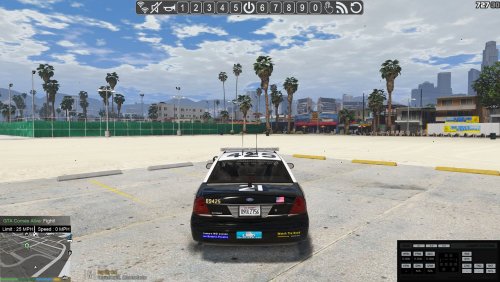
I created this Siren Mastery panel for my own use & thought others might like it.
What I wanted was a slimeline panel that sat at the top centre of the screen (all four corners are too busy already).
This panel is not designed to look like anything real - just be clear, easy to view & not take up much space.
The install instructions are included in the download, you need to set the UIPosition value in UIConfig.ini to TopLeft
The [UISpecificPositioning] value in the included UIPositioning.ini then shifts it to the right to the centre of the screen.
I use a UIScalingFactor of 0.3
These settings work for 1920x1080 resolution (if you use a different resolution you will need to adjust these settings).
You will need to install Siren Mastery for this to work.
Thanks go to @Albo1125 for producing Siren Mastery (and other indispensible mods)
- 470 Downloads
- 4 Comments
Submitted -
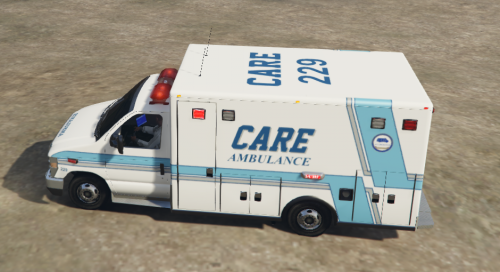
These textures are for the Ford E450 by PimDSLR http://www.lcpdfr.com/files/file/10293-ford-e450-lafd-ambulance-4k-by-pimdslr/
There are two CARE skins and four AMR skins (two in their old style and two in the new style)
To install, use OpenIV, navigate to mods\update\x64e\levels\gta5\vehicles.rpf
You can either replace existing textures or import as additional textures (you may need to rename them before importing)
I've done quite a few skins for my own use in GTA IV & V but these are the first I've published - I hope you like them.
Please don't upload these on to any other site.
- 693 Downloads
- 8 Comments
Submitted