
OfficerVisvim
Members
-
Joined
-
Last visited
Everything posted by OfficerVisvim
-
 Can't you just release the finished pack now? :-(
 -
-
 this is very guhd
 -
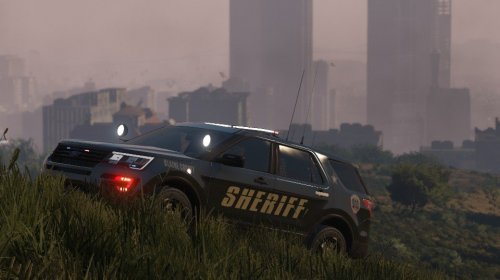 Less is definitely more
 -
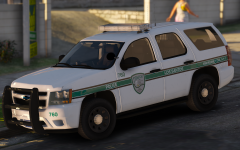 How do emergency lights look with NV? Haven't seen any pictures or videos with it yet and that's the only thing keeping me from downloading.
 -
-
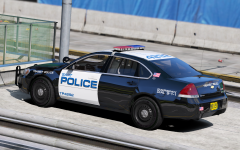 Awesome, you're making me love the Impala again! Always welcome different types of specialty police into lspdfr too.
 -
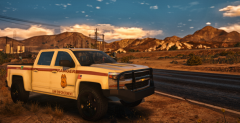 holy smokes..
 -
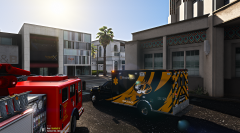 The few times I visited I always thought the ambulances and the universities PD's units were awesome, great work
 -
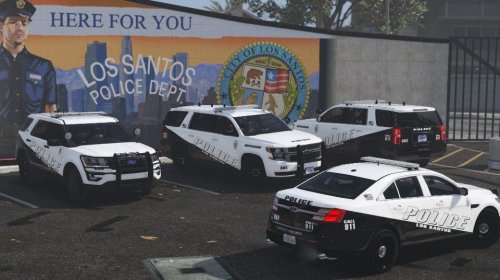 Better and better, man
 -
-
-
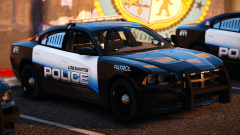 So good
 -
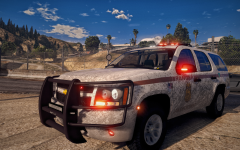 Looking forward to this release, great stuff
 -
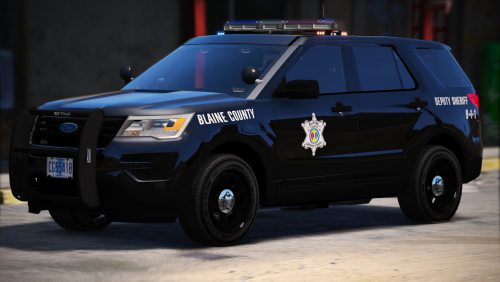 Perfect skins, sir. Will be in my game for a long time to come. Would you consider adding a skin for POLICESCO's Caprice?
- 17 comments
- 14 reviews
-
-

- 1
-
-
-
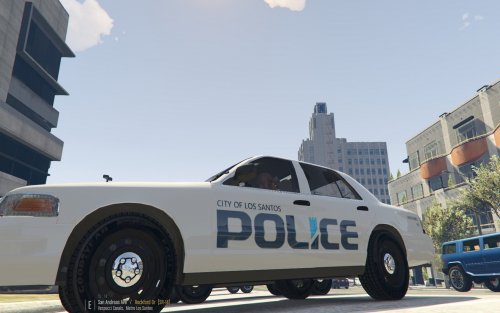 Actually a really cool skin, good work man
 -
 White, oh yes
 -
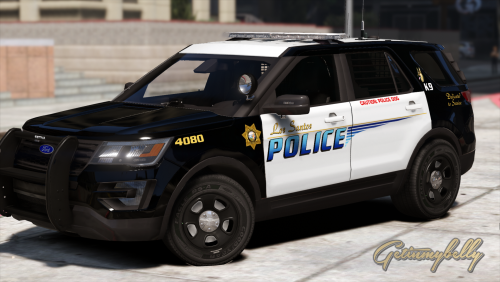 Amazing! Throwing them in my game immediately! Do you plan on adding Bxbugs's CVPI?
- 11 comments
- 6 reviews
-
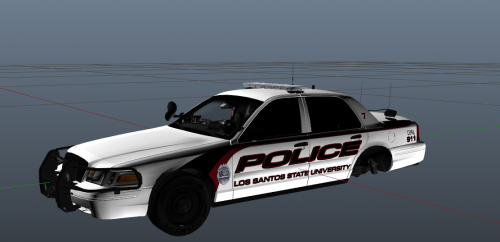 Awesome stuff! Working for a university police department you notice how little quality university skins there are for LSPDFR haha.
 -
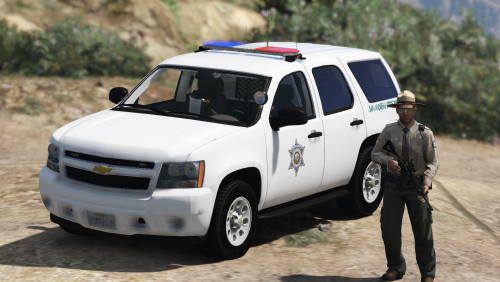 Maybe I'm missing something but I can't seem to find the "clear" lightbar texture you said you included?
- 18 comments
- 4 reviews
-
![Paleto Bay Police [WIP]](//s3-gallery.int-cdn.lcpdfrusercontent.com/monthly_2016_09/small.20160926204139_1.jpg.5cff81aca330cccb06fa0e7ff67b266f.jpg) Shawano, WI, right?
Shawano, WI, right? -
 Lake County 10/10
 -
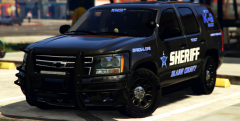 "For a customer up here in the beautiful Pacific Northwest"
 -




![Paleto Bay Police [WIP]](http://s3-gallery.int-cdn.lcpdfrusercontent.com/monthly_2016_09/small.20160926204139_1.jpg.5cff81aca330cccb06fa0e7ff67b266f.jpg)