DazedNug
Members
-
Joined
-
Last visited
Everything posted by DazedNug
-
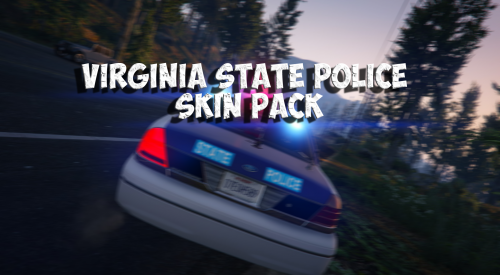
 Absolutely stunning! Fits amazingly well with Blaine County and the BCSO peds! Fantastic work, thank you! Gotta love the roto vic too!
- 60 comments
- 23 reviews
-
-

- 1
-
-
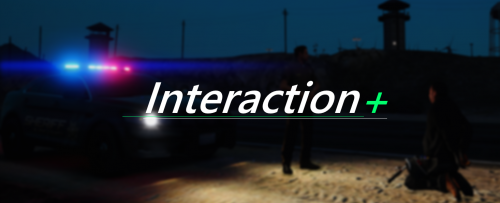 A must have mod for LSPDFR! I've been waiting for a mod exactly like this one since LSPDFR first released and this is spot on! 10/10 man thank you for this!
- 1,005 comments
- 68 reviews
-
Thanks for your response! I really appreciate all the help and support you give here in this community to us members! You've helped me on multiple occasions by responding to others!
-
Ok so basically my question is if I wanted to, for example, make the highway cop ped spawn as the driver for vehicles police, police2, etc. would I simply just need to change the line in the vehicles.meta that reads "<driverName>S_M_Y_Cop_01</driverName>" to the hash for the hway cop?
-
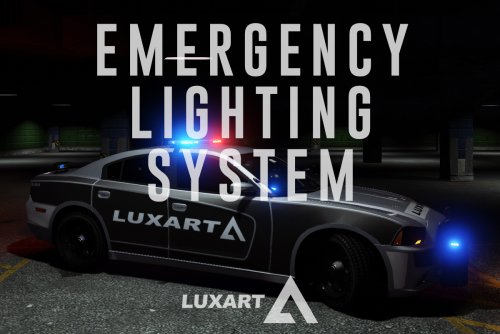 Hi, I have an issue with my lighting. Everything works perfectly as intended when I am inside my vehicle. However, when I am outside of the vehicle the lights become extremely dim to the point where you can't see them if I am on anything other than Stage 3 or full lighting. I use RadianceV and as I stated when I am inside the vehicle, all lighting stages work as intended, it's only when I exit the vehicle with Stage 1 or 2 lighting. Can anyone help me resolve this issue?
- 2,655 comments
- 234 reviews
-
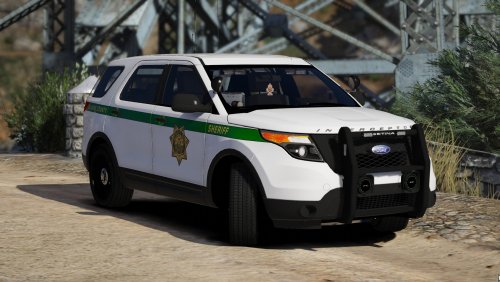
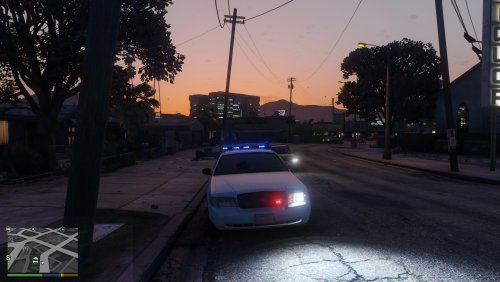 Awesome job man! Been trying to get a whole set of Ohio cars for a while and this is a great addition!
- 25 comments
- 6 reviews
-
-
- 1
-
-