FDLC FF/EMT Boxer
Members
-
Joined
-
Last visited
Everything posted by FDLC FF/EMT Boxer
-
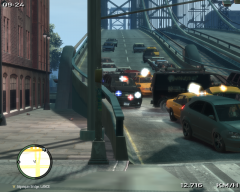
From the album: LCPD Ussual buisness
-
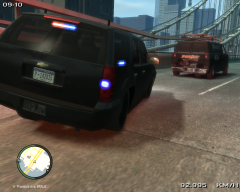
From the album: LCPD Ussual buisness
-
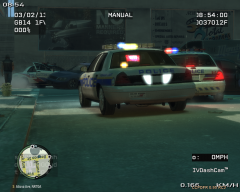
From the album: LCPD Ussual buisness
-
From the album: LCPD Ussual buisness
-
From the album: LCPD Ussual buisness
-
From the album: LCPD Ussual buisness
-
From the album: LCPD Ussual buisness
-
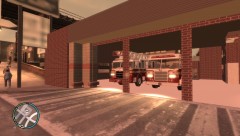 ladder still not out?
 -
yea but i want it to save suspects killed :/
-
in the next version is the back door gonna be fixed? it has that white outline arund it
- 38 comments
- 8 reviews
-
does it save the number of suspect killed? and if not will it? i keep going on to check but dont see it just arrest
-
nice shootin i like tht sgt skin and the swat team for once didnt come in hot and hit everythin in their path
-
-
y do ur lights look wierd whn u turn em on doesnt rly look like they are flashing and the headlighs look led they got tht white/blue look
- 18 comments
- 11 reviews
-
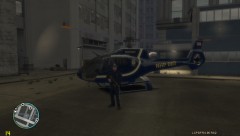 pertyyyyyyyyyy
 -
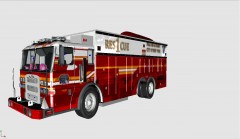 D:
D: -
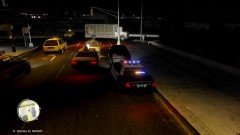 i like nice idea
 -
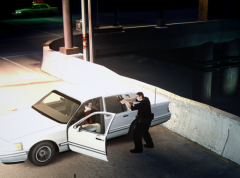 is tht a new aim?
 -
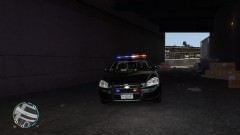 sexy
sexy -
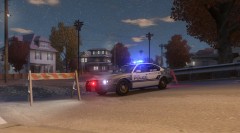 i remember that car 2!
 -
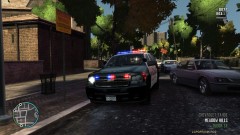 tht looks nice any other views?
 -
das is for mp gameplay. when ur in a police outfit u can open it and it tells u where every cop is and what type they are for ex noose, patrol, etc. but if u do it without a police unifrm uu crash. dont ask me y
-
nice video, welcome to lcpdfr and u should download the less overtaking mod so they dont hit u like that 1st car did. for 30 seconds they dont try to pass u here u go http://www.gta4-mods.com/script/less-overtaking-f15306
-
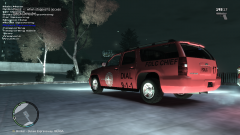 might wanna resize some things iv never seen a cheif car like that
 -
 reminds me of the show sru love tht show