


BQG07
Members
-
Joined
-
Last visited
Everything posted by BQG07
-
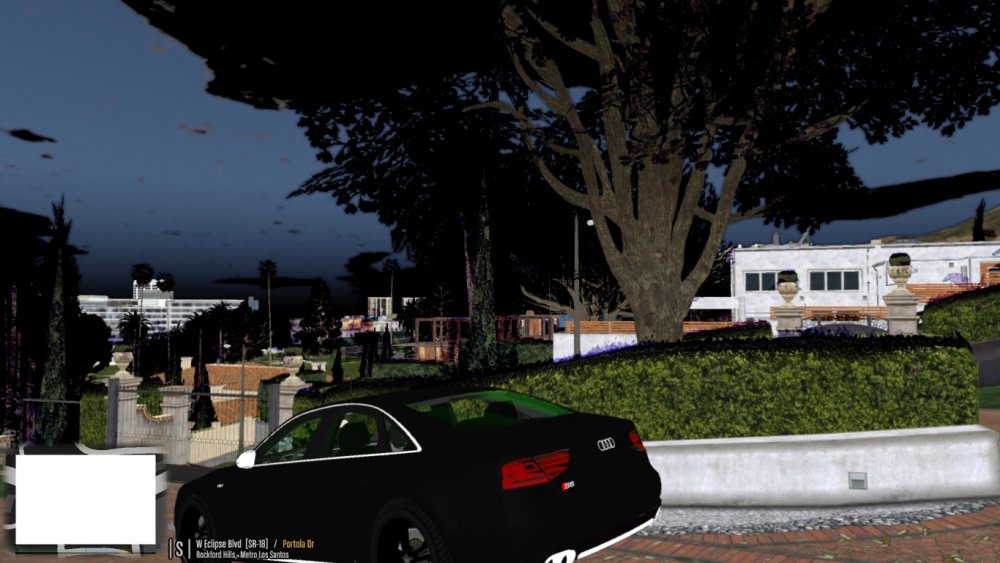
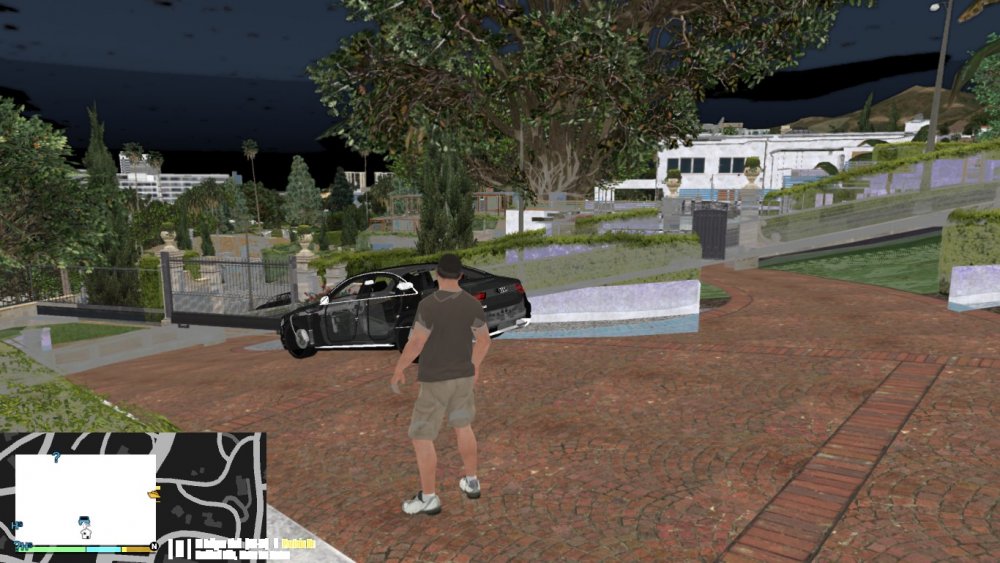
Not exactly sure what the issue is here but lately (as in the last week or so) everytime I load the game I get the rageplugin error stating slow sytem or insufficient permissions. Rageplugin crashes but I'm still allowed to enter the game but I've noticed that my game cast everything and everyone in a weird color. See below. Has anyone else experienced this or know how to resolve this issue? I would really like to get back to playng GTA but can't because of the color issues. Sometimes the screen completely whites out. Thanks for any assistance and or direction.

-
Hello there, I've been having a bit of a problem with LCPDFR 1.1 lately. The issue I'm having is that after the game loads it starts with a cop model loaded in place of Niko even if I delete my saved game and start over. It should be noted that I am not pressing Alt+P as again it LCPDFR starts basically on it's on. In times prior I've always had to press Alt+P. I've tried to reinstall LCPDFR 1.1 manually and took out the callouts+ mod and that still didn't resolve the issue. I've reinstalled the game as well to no avail. I've attached my latest two logs. Hopefully someone can provide a solution. Many thanks in advance. Diagnostics_9.1.2016_19_22_49.log Diagnostics_9.1.2016_19_26_55.log


