


NickNac113
Members
-
Joined
-
Last visited
Everything posted by NickNac113
-
-
Hello!! First attempts at textures for release so feedback is always appreciated! ***DO NOT UPLOAD (ORIGINAL OR EDIT) ANYWHERE ELSE WITHOUT MY EXPLICIT PERMISSION*** ***This is an LCPDFR.com EXCLUSIVE ITEM!!!*** That being said, I do not mind if you alter the skins for your own PERSONAL use, but failure to heed warning is laid out in the readme. ALL CARS IN SCREEN SHOTS ARE PROPERTY OF THEIR RIGHTFUL OWNERS. THIS PACK DOES NOT INCLUDE VEHICLE MODELS! ____________________________________________________________________________________________________________________ Ultimate Naperville Police Skin Pack This pack is skins for various vehicles listed with links in the readme. It includes: -Naperville Police CVPI -Naperville Police Interceptor Utility -Naperville Police Interceptor Utility (Sergeant Skin) -Naperville Park District Police Interceptor Utility -Naperville Park District Police Ford Explorer (2008) -Naperville Park District Police Ford Expedition (2008) The Naperville Police Department is a Nationally Accredited Police Department featured on the show "Female Forces" on the Bio Channel These are the skins for their CURRENT fleet. I know there used to be an Impala, however they are not in use anymore and therefore are not included in this pack.
- 10 comments
- 1 review
-
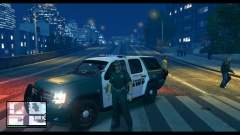 100% sure that's a Suburban due to the wheel arches and slightly longer length. Maybe not the LT edition but most PPVs would not be.

