Creators: Due to background reprocessing of files, approvals and file security checks may be delayed. Thanks for your patience.

Ellisman
Members
-
Joined
-
Last visited
Files posted by Ellisman
-
Hi All
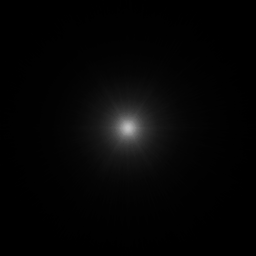
This is my first release so be gentle with me ;-) i noticed that in-game coronas for rotas are poor and barely visible during the day and at night. I have created my own corona which looks much more realistic to how the coronas should look. Works excellent with the 90's retro police car pack.
Please note that you will need radiance v very bright setting and this corona to make the effect look right.
Installation....
install corona to mods/x64a.rpf/textures (click edit mode) /graphics.ytd. go down to the file that says corona and click on it then click replace and replace with file provided.
once downloaded radiance v (v1.6) install visualsettings.dat (from very bright folder) to mods/update/update.rpf/common/data and replace.
i recommend you install retro police pack
Works well with if not better with ENB's
Download the video below which showcases the new coronas
Please leave a comment and let me know your thoughts
Gta5 2016-11-01 18-07-59-86-1.m4v
GTA5 2016-11-01 20-37-18-52.bmp
GTA5 2016-11-01 20-37-22-26.bmp
GTA5 2016-11-01 20-37-44-30.bmp
GTA5 2016-11-01 20-39-30-35.bmp
GTA5 2016-11-01 20-39-30-53.bmp
GTA5 2016-11-01 20-39-30-75.bmp
GTA5 2016-11-01 20-39-40-08.bmp
GTA5 2016-11-01 20-39-40-50.bmp
- 411 Downloads
- 4 Comments
Updated