


LCPD-74
Members
-
Joined
-
Last visited
Everything posted by LCPD-74
-
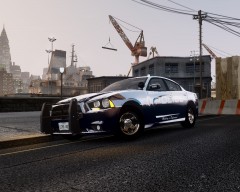
From the album: LCPD HQ Pictures
-
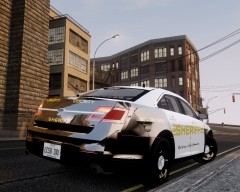
From the album: LCPD HQ Pictures
-
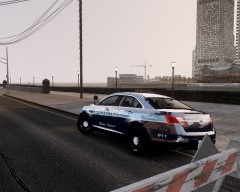
From the album: LCPD HQ Pictures
-
-
-
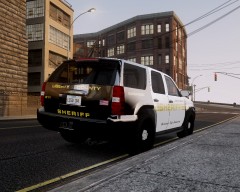
From the album: LCPD HQ Pictures
-
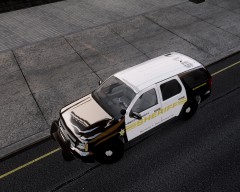
From the album: LCPD HQ Pictures
-
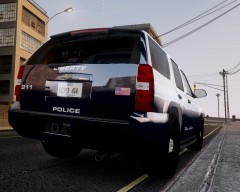
From the album: LCPD HQ Pictures
-
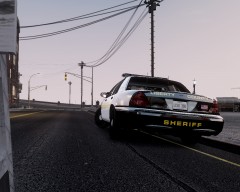
From the album: LCPD HQ Pictures
-
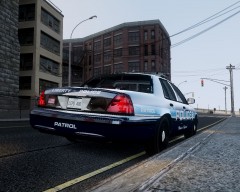
From the album: LCPD HQ Pictures
-
I like how your head is going through the hat :)
-
I will say that, if you don't have any members by now, you are doing something wrong, we don't need another low count clan taking up room on the groups page anyhow. just my opinion, do with it as you please.
-
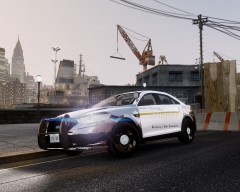
From the album: LCPD HQ Pictures
-
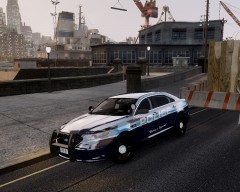
From the album: LCPD HQ Pictures
-
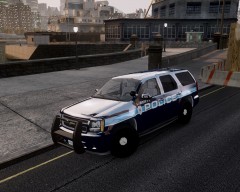
From the album: LCPD HQ Pictures
-
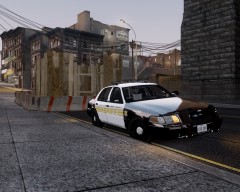
From the album: LCPD HQ Pictures
-
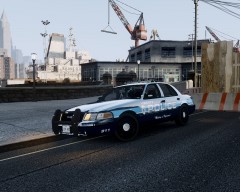
From the album: LCPD HQ Pictures
-
my opinion is YUCK! sorry i'm harsh but I would never work at that police department if it was real just based on how the cars look.
-
Serpentine Std Bold oblique is pretty much exactly the same and much easier to find.
-
-
well your first problem was buying windows 8 and on top of that buying it as a gaming computer. I made that mistake and had the same problems you described, i took it back and got a windows 7 version instead, and poof! no problem. Still running happy today.... weird! *cough* *cough* windows 8
-
wut? is it because they are white? they just so happen to say sheriff on them, not LCPD
-
-
I want one that LIMITS my speed not one that is cruise control.... there are so many stop lights in LC I find cruise control useless, however It
- 29 comments
- 20 reviews
-
you said no need to post ink because it is all here? I don't see any link and would in fact like a link to that vehicle.
- 5 comments
- 1 review

