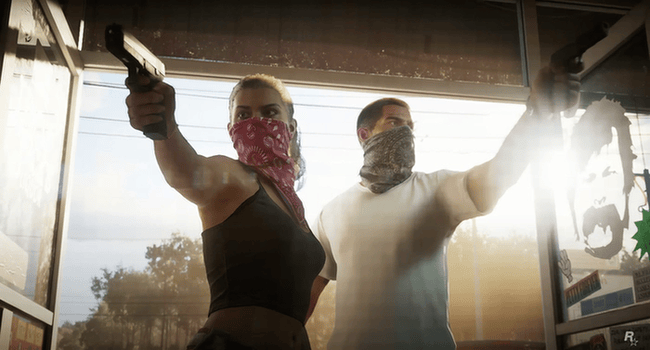
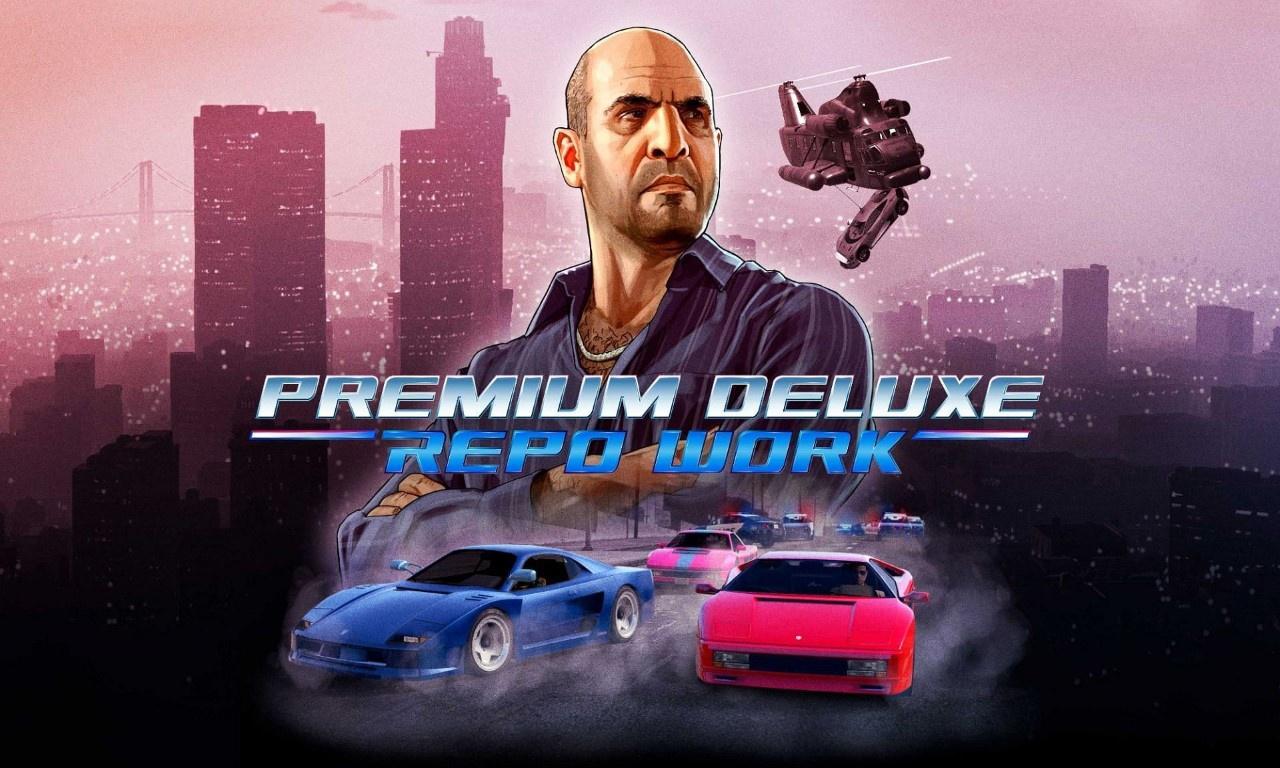
Grand Theft Auto, as the name implies, revolves around crime, which makes the wanted system a crucial part of the experience. Ideally (at least in GTA 6), the police should be smarter, more advanced, and supported by a variety of innovative features to keep players on their toes.
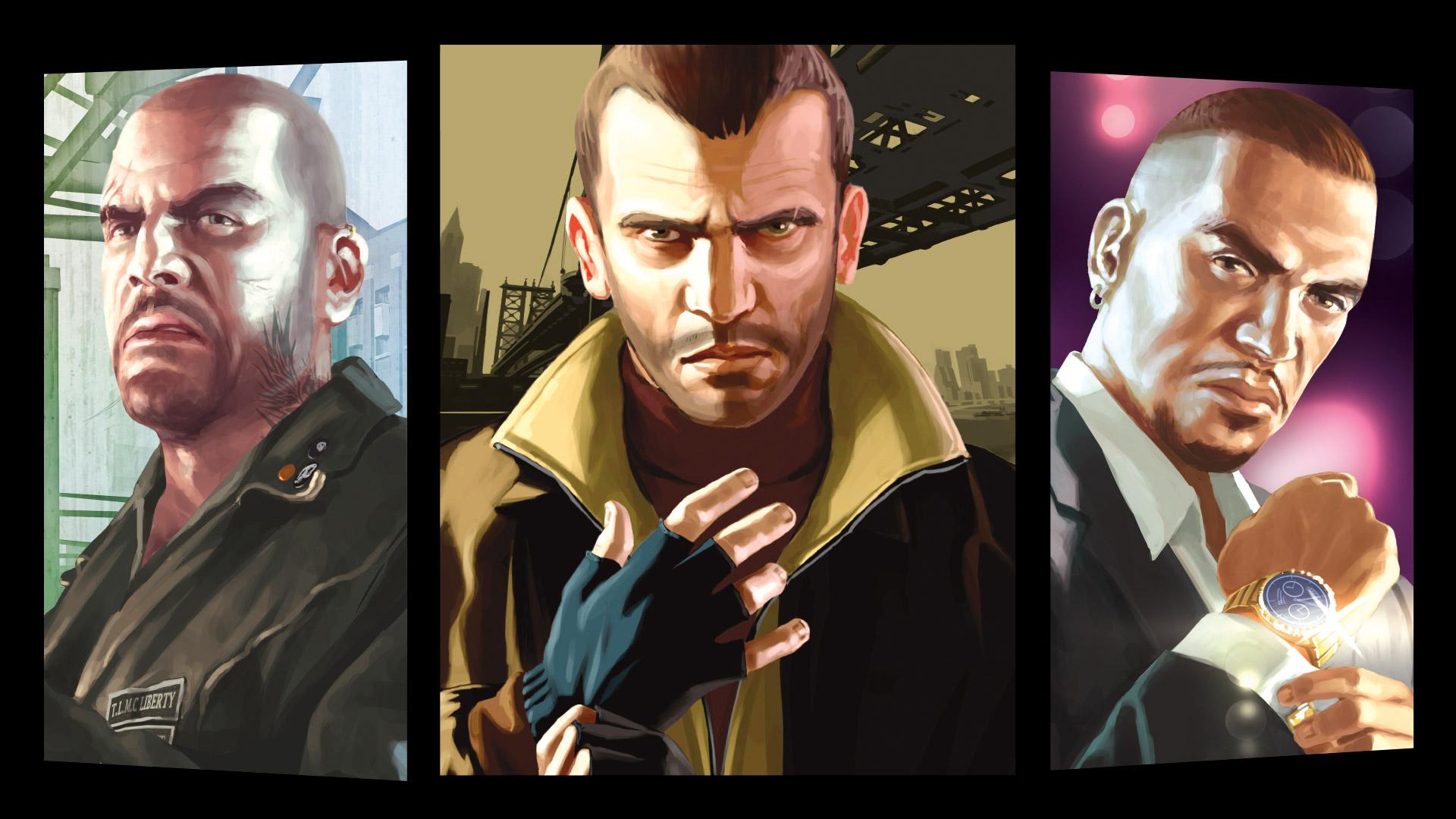
GTA 4 is often regarded as not just one of the best entries in the series, but one of the greatest games in history. Rockstar exceeded expectations with this title, largely because of its darker and more grounded tone compared to any other game in the franchise.
The GTA games have built a reputation for being some of gaming’s greatest sandboxes. From driving cars and other types of vehicles to side activities like tennis, the franchise has offered endless amounts of activities and content over the years.
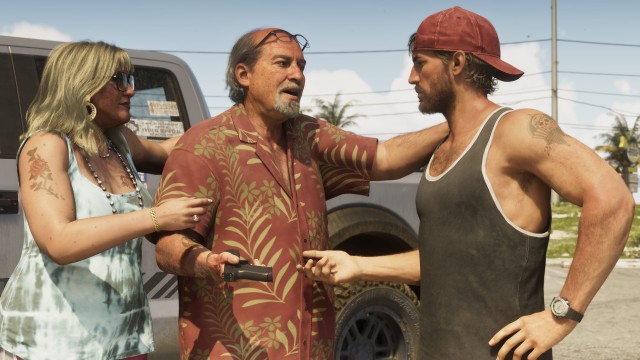
2025 has proven to be an incredible year for gaming so far, but nothing in the last five years will compare to the humongous release of Rockstar’s magnum opus next year. Hot off the heels of two back-to-back hits, the studio is gearing up to release GTA 6 in May 2026.
The delay of GTA 6 came as a shock to many, but it ultimately ensures a stronger and more polished release. After all, a great game that arrives later is always better than a broken one released too early. Cyberpunk 2077 serves as a perfect example of why patience pays off.