Skip to content
View in the app

A better way to browse. Learn more.

LCPDFR.com

A full-screen app on your home screen with push notifications, badges and more.

To install this app on iOS and iPadOS
  1. Tap the Share icon in Safari
  2. Scroll the menu and tap Add to Home Screen.
  3. Tap Add in the top-right corner.
To install this app on Android
  1. Tap the 3-dot menu (⋮) in the top-right corner of the browser.
  2. Tap Add to Home screen or Install app.
  3. Confirm by tapping Install.
Due to overzealous filtering on Microsoft’s side, some emails to Outlook and Hotmail addresses may not be delivered. If you’re affected, please use a different email address or try again later.
PatrolPics

PatrolPics

Album created by OfficerCrader · Updated

I figured since I always take screen shots, I might as well upload them somewhere! Enjoy😎 

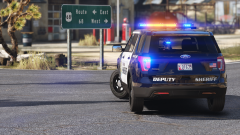
Grand Theft Auto V Screenshot 2018.06.16 - 17.22.31.04.png

Deputy Sheriff huh?

I can picture you in MCSO greens 😂

OfficerCrader

Members

On ‎11‎/‎29‎/‎2018 at 10:11 PM, Corporal Commander said:

Deputy Sheriff huh?

I can picture you in MCSO greens 😂

HAHAH Good pic huh? I love the model and skins.... even if it s county


Join the conversation

You can post now and register later. If you have an account, sign in now to post with your account.

Guest
Add a comment...

Recently Browsing 0

  • No registered users viewing this page.

Account

Navigation

Search

Search

Configure browser push notifications

Chrome (Android)
  1. Tap the lock icon next to the address bar.
  2. Tap Permissions → Notifications.
  3. Adjust your preference.
Chrome (Desktop)
  1. Click the padlock icon in the address bar.
  2. Select Site settings.
  3. Find Notifications and adjust your preference.