


Raggio's GTA IV Mods and Gameplay Screenshots
Album created by
Raggio ·
Updated
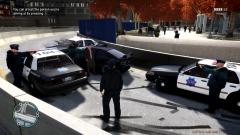
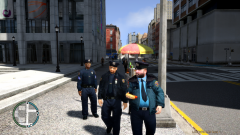
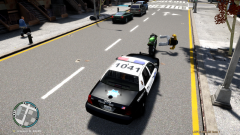
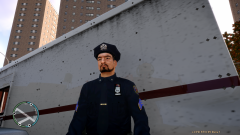
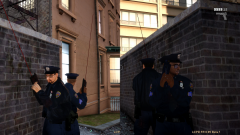
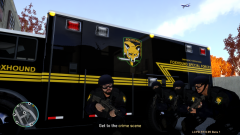
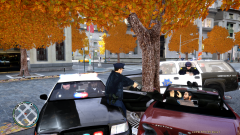
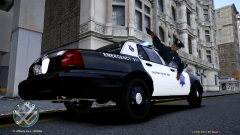
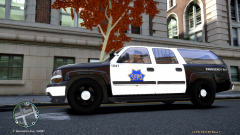
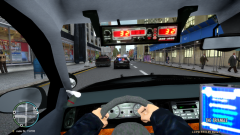
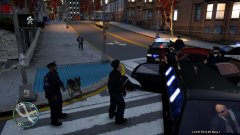
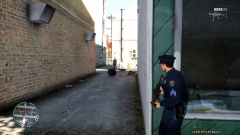
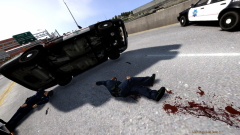
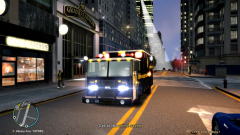
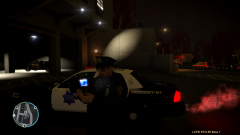
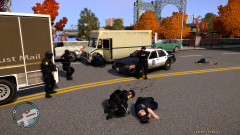
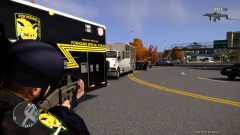
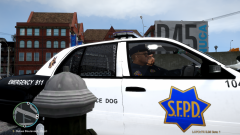
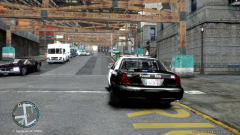
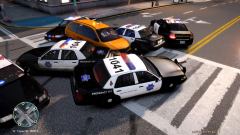
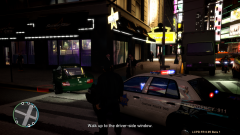
These are in-game screenshots of the various GTA IV mods used by Raggio.
All SFPD, CHP, and FOXHOUND vehicle skins and police uniforms are custom edited and/or made by Raggio, either from scratch or by using other skins (and of course, the template) as a basis.
I'm running a custom built rig:
Core i5 2500-K @ 4.5GHz 1.336v
EVGA GTX 580 SC
16GB Corsair Vengeance DDR3 RAM 9-9-9-24 1.5v
ASUS P8P67 Pro
iCEnhancer 2.0 is used in these sceenshots. Without iCEnhancer, I get 80 FPS. With iCEnhancer, I get only 40 FPS. It decreases performance, but I think it's worth it. Also wothy of noting, 1.0.7.0 only does 40 FPS at best...1.0.4.0 does 80 FPS all the time...that alone tells you why 1.0.4.0 is better.
However, having fancy eye-candy is not why I use 1.0.4.0; I can do without iCEnhancer. 1.0.4.0 is simply the best patch in terms of performance and stability. 1.0.7.0 crashes all the time and is not recommended. I just installed it since I was trying out 1.0.4.0 versus 1.0.7.0...never want to go back to 1.0.7.0 again.
All SFPD, CHP, and FOXHOUND vehicle skins and police uniforms are custom edited and/or made by Raggio, either from scratch or by using other skins (and of course, the template) as a basis.
I'm running a custom built rig:
Core i5 2500-K @ 4.5GHz 1.336v
EVGA GTX 580 SC
16GB Corsair Vengeance DDR3 RAM 9-9-9-24 1.5v
ASUS P8P67 Pro
iCEnhancer 2.0 is used in these sceenshots. Without iCEnhancer, I get 80 FPS. With iCEnhancer, I get only 40 FPS. It decreases performance, but I think it's worth it. Also wothy of noting, 1.0.7.0 only does 40 FPS at best...1.0.4.0 does 80 FPS all the time...that alone tells you why 1.0.4.0 is better.
However, having fancy eye-candy is not why I use 1.0.4.0; I can do without iCEnhancer. 1.0.4.0 is simply the best patch in terms of performance and stability. 1.0.7.0 crashes all the time and is not recommended. I just installed it since I was trying out 1.0.4.0 versus 1.0.7.0...never want to go back to 1.0.7.0 again.
21 images
-
By Raggio · 4 comments
-
By Raggio · 2 comments
-
By Raggio · 4 comments
-
By Raggio · 5 comments
-
By Raggio · 3 comments
-
By Raggio · 4 comments
-
By Raggio · 5 comments
-
By Raggio · 3 comments
-
By Raggio
-
By Raggio · 6 comments
-
By Raggio · 4 comments
-
By Raggio · 14 comments
-
By Raggio · 2 comments
-
By Raggio · 8 comments
-
By Raggio · 2 comments
-
By Raggio · 7 comments
-
By Raggio · 4 comments
-
By Raggio
-
By Raggio · 10 comments
-
By Raggio · 2 comments
-
By Raggio · 11 comments
Recently Browsing 0
- No registered users viewing this page.
0 Album Comments
There are no comments to display.
Join the conversation
You can post now and register later. If you have an account, sign in now to post with your account.