


LSPDFR: Real Life Agencies
Being a resident of Los Angeles, California, it's so very cool to be able to add in agencies from where I live. The way I play, I prefer to use skins and models based on real life, so for example i will always use LAPD or CHP skins. As you can see I use 6 Real life agencies in game with their own patrol jurisdiction as well as vehicle fleet, plus a bonus 7th agency.
These are:
Los Angeles Police Department
Los Angeles County Sheriff's Department (Covering West Vinewood and Sandy Shores area)
California Highway Patrol
Beverly Hills Police Department (Rockford Hills)
Santa Monica Police Department (Del Perro & Del Perro Beach)
San Bernardino County Sheriff's Department (Paleto Bay)
(Bonus) North Dakota Highway Patrol (North Yankton)
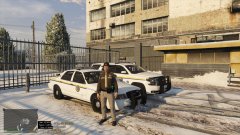
North Dakota is the only agency that uses a skin based off North Yankton as unfortunately no one has made a North Dakota Highway Patrol Livery pack but the ones i found for NY do the job and they are supposed to be North Dakota. All other agencies use skins for their cars that are their real life liveries.

7 images


Recently Browsing 0
- No registered users viewing this page.
1 Album Comment
Join the conversation
You can post now and register later. If you have an account, sign in now to post with your account.