Skip to content
View in the app

A better way to browse. Learn more.

LCPDFR.com

A full-screen app on your home screen with push notifications, badges and more.

To install this app on iOS and iPadOS
  1. Tap the Share icon in Safari
  2. Scroll the menu and tap Add to Home Screen.
  3. Tap Add in the top-right corner.
To install this app on Android
  1. Tap the 3-dot menu (⋮) in the top-right corner of the browser.
  2. Tap Add to Home screen or Install app.
  3. Confirm by tapping Install.

ELS emissive lights always on

Featured Replies

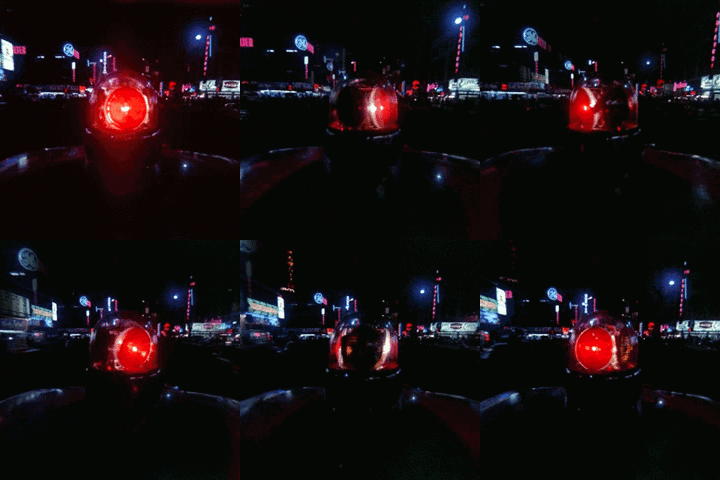
Hi again, so I have this problem now, ELS works but the Emissive won't turn of unless I turn off the engine. Also coronas won't show unless I'm looking from an exact angle as seen in here:

https://youtu.be/rwdBGNM36xU

From 1:04 in the video on you can see the corona pop up.


Thanks for your help.


EDIT: the corona thing was fixed by removing some vertices that where in the middle of it, making it not visible. However I cannot fix the ELS thingy.

Edited by Insus100

n-560x95_FFFFFF_FFFFFF_000000_000000.png

  • Author
2 minutes ago, OfficerFive0 said:

Can I see it in zmod?

Yes please

W2WqzWW.jpg

CIJb6JH.jpg

OYHAHrD.jpg

Don't Know if that's what you need, tell me if you need more screenshots please.


n-560x95_FFFFFF_FFFFFF_000000_000000.png

  • Author
2 minutes ago, OfficerFive0 said:

Is Siren18 your emmisive and rotator, or just the rotator?

If I hide it, it hides the rotator, with all the textures, leaving only the glass visible, so it's both.

n-560x95_FFFFFF_FFFFFF_000000_000000.png

  • Author

Ok so I finally fixed thanks to the guide OfficerFive0 provided me, as it was DRO2, I was missing an invisible glass to hide the emissive while it was not on. Thank you.

Edited by Insus100

n-560x95_FFFFFF_FFFFFF_000000_000000.png

Join the conversation

You can post now and register later. If you have an account, sign in now to post with your account.

Guest
Reply to this topic...

Recently Browsing 0

  • No registered users viewing this page.

Account

Navigation

Search

Search

Configure browser push notifications

Chrome (Android)
  1. Tap the lock icon next to the address bar.
  2. Tap Permissions → Notifications.
  3. Adjust your preference.
Chrome (Desktop)
  1. Click the padlock icon in the address bar.
  2. Select Site settings.
  3. Find Notifications and adjust your preference.