Skip to content
View in the app

A better way to browse. Learn more.

LCPDFR.com

A full-screen app on your home screen with push notifications, badges and more.

To install this app on iOS and iPadOS
  1. Tap the Share icon in Safari
  2. Scroll the menu and tap Add to Home Screen.
  3. Tap Add in the top-right corner.
To install this app on Android
  1. Tap the 3-dot menu (⋮) in the top-right corner of the browser.
  2. Tap Add to Home screen or Install app.
  3. Confirm by tapping Install.

Ped backpack texture issue

Featured Replies

Hi! I am trying to wear a backpack with a model that doesn't have it.

I have the model (ig_barry), and I have the backpack from another similar model (ig_bankman). Basically what I'm trying to do is to add the backpack to my model. I've been able to do it by exporting the ".odd" of ig_barry (my model) using OpenIV and adding the backpack manually by copying and pasting the related ".odr" files and meshes from the other model "ig_bankman".  I've also added the related string to the file "ig_barry.odd". Everything looks good in OpenIV (the backpack looks fine and is also detachable), but when I load the game the backpack is fixed on the model and it's using the ped's face texture instead of the proper "lowr_diff" one (the backpack). No idea what to do. I hope I've been able to explain myself, it's a bit complicated for me and I haven't been able to find any tutorials online.


EDIT: this is how it looks on OpenIV.

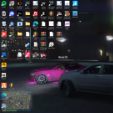
EDIT2: this is what it looks like in game.

bandicam 2017-02-08 14-42-55-490.jpg

GTA5 2017-02-08 14-46-07-910.jpg

Edited by supergashbell

YouTuber, modding enthusiast. 

Join the conversation

You can post now and register later. If you have an account, sign in now to post with your account.

Guest
Reply to this topic...

Recently Browsing 0

  • No registered users viewing this page.

Account

Navigation

Search

Search

Configure browser push notifications

Chrome (Android)
  1. Tap the lock icon next to the address bar.
  2. Tap Permissions → Notifications.
  3. Adjust your preference.
Chrome (Desktop)
  1. Click the padlock icon in the address bar.
  2. Select Site settings.
  3. Find Notifications and adjust your preference.