Skip to content
View in the app

A better way to browse. Learn more.

LCPDFR.com

A full-screen app on your home screen with push notifications, badges and more.

To install this app on iOS and iPadOS
  1. Tap the Share icon in Safari
  2. Scroll the menu and tap Add to Home Screen.
  3. Tap Add in the top-right corner.
To install this app on Android
  1. Tap the 3-dot menu (⋮) in the top-right corner of the browser.
  2. Tap Add to Home screen or Install app.
  3. Confirm by tapping Install.

ELS V8 strobes

Featured Replies

Lt. Caine,


I thoroughly enjoyed your ELS V8 yesterday evening. It was so engaging that I lost all track of time. By any measure you are a very effective modder and scripter. It shows the confidence that you have instilled during the making of V8.


I was especially thrilled when i saw the new corona feature, and to much of my surprise, you included the corner strobes feature. It was a delight to see this, i was a kid in a candy store for the first time. Corner strobes are the backbone of crown Victoria emergency lights. I tip my hats off to you for the realistic radiation and how it reflect around environments.


I have one question that i could not find the answer for in any of your documentations. How can i brighten up or tweak the strobe patterns, especially pattern #0 , the four burst pattern. In real life, assuming that you based it on the whelen hide-a-way strobes system, the actual 4 burst pattern, or comet flash, the lead burst out of 3, is brighter for emphasis.


Example :


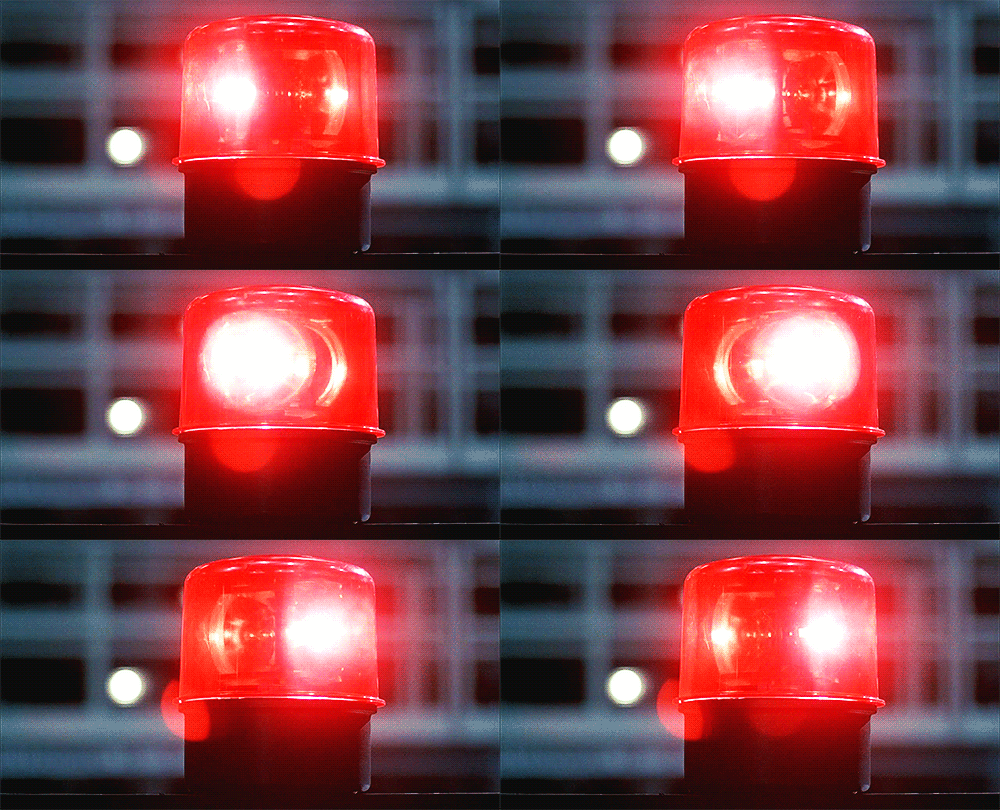
You can notice the radiation has this quick bright flash at the beginning of each cycle. This completes the strobe image.


Can i get some guidance to make this possible, because this will improve the strobe quality of ELS V8 and look more authentic and genuine.


Thanks, Caine.


SmsqmYF.png


  • 2 months later...

Join the conversation

You can post now and register later. If you have an account, sign in now to post with your account.

Guest
Reply to this topic...

Recently Browsing 0

  • No registered users viewing this page.

Account

Navigation

Search

Search

Configure browser push notifications

Chrome (Android)
  1. Tap the lock icon next to the address bar.
  2. Tap Permissions → Notifications.
  3. Adjust your preference.
Chrome (Desktop)
  1. Click the padlock icon in the address bar.
  2. Select Site settings.
  3. Find Notifications and adjust your preference.