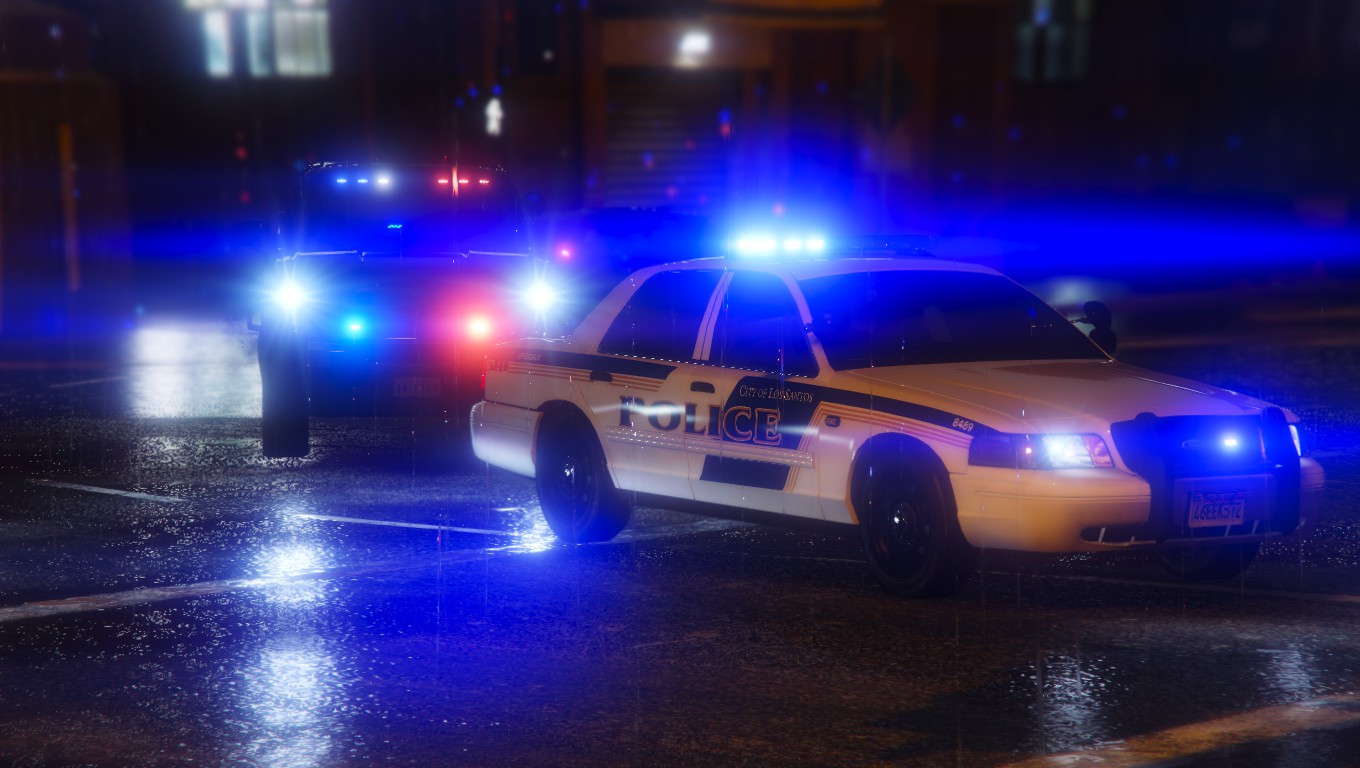
Hello fellow first responders!
I'm no longer active on this site. I've put modding on hold to focus on goals I've set for myself outside of gaming and I am not planning on returning anytime soon. Modding is fun and I love making police skins for all these amazing cars on here. I'll return one day and continue my work. But as of right now its goodbye.
All my textures are open source. Feel free to download and make any changes you'd like, add more textures and rerelease them, use them for your servers, whatever you'd like. All I ask is please give credit where credit is due.
Hey Guys! Welcome to my profile. My name used to be Kpdofficer but from now on its LoneWolfSpecter. I decided to change my name to start over with everything. New identity, new YouTube channel, new Steam name and now a new Instagram page where I will upload my screenshots.
So what does LoneWolfSpecter mean and why did I choose that name?
When I play games I prefer to be alone. I don't work well in teams, so that's where Lone Wolf comes in. Specter means a ghost, an apparition, A spirit... something feared. I wanted something related to Special Forces and I thought about Tom Clancy games like The Division and Ghost Recon. That's where Specter came in. Combine the three words and you get Lone Wolf Specter.
My Download Page
Instagram