
GTA 5 Jedi Master
Members
-
Joined
-
Last visited
Everything posted by GTA 5 Jedi Master
-
 Right......
 -
 Damn, you got me twice......
 -
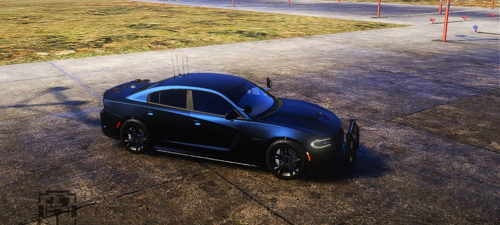
I meant to say it's a beautiful car. Very well done! Dirt or no dirt.
-
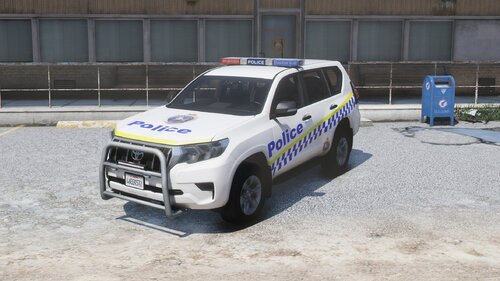 Dude, I haven't seen you around in forever! Now give us some new DEV parts!
 -
clean baby, just soooooo clean! Love it!
-
Razer's Patreon page forever ago.
-
-
I got you! The update is currently uploading.
-
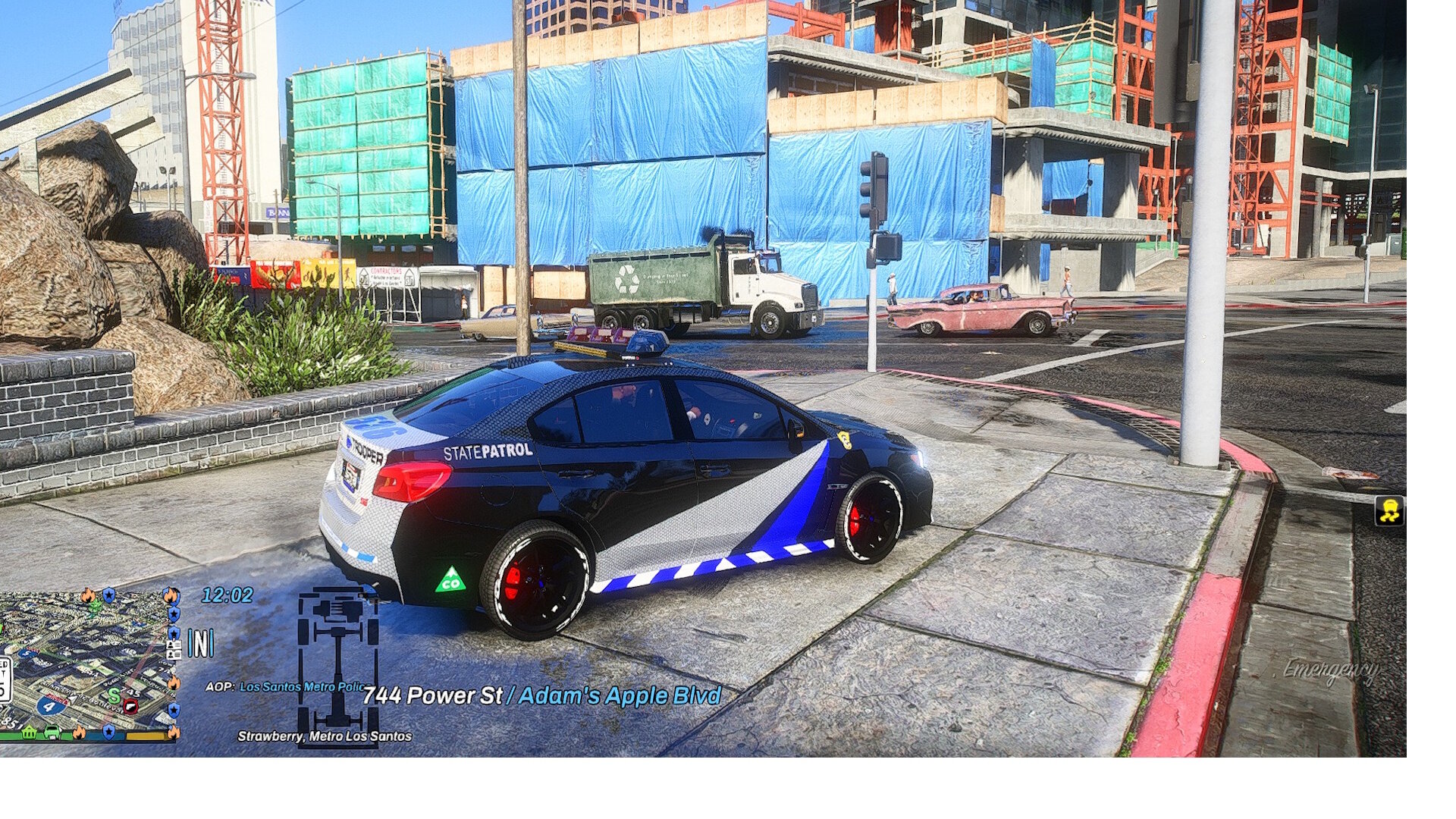
I fixed the windshield issue....it was just the transparency still. New windows texture has GTA 5 default glass transparency. I again adjusted the takedowns but I'm thinking graphics mods may be the real difference you're seeing as far as the headlights etc. Here's a couple of screenshots from my end.
-
Just saw your comment. Takedowns are now mapped to the default ELS key - "]" as well as the default headlight high-beam button.
-
Thanks, brother! The changes you mentioned are added. The windshield issue was just the "windows_tint" texture being completely transparent below the top tint line. Feel free to edit the texture if you want to. Also, the takedowns were added to the default ELS key "]". There are full lighting takedowns including the spotlight enabled by activating the vehicles high-beam headlights. Let me know if you find any other issues please!
-
Bro, do you use ELS? A bad ELS file will cause a crash without an error logged.
-
Dude, that just looks so clean & smooooothe!
-
-

From the album: GTA 5 Jedi Master's Works in Progress
-
From the album: GTA 5 Jedi Master's Works in Progress
-
From the album: GTA 5 Jedi Master's Works in Progress
-
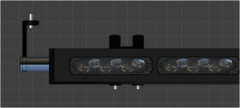
From the album: GTA 5 Jedi Master's Works in Progress
-
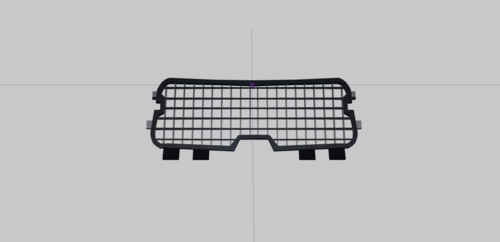 Dig it! Thank you for releasing this!
 -
-
-
-
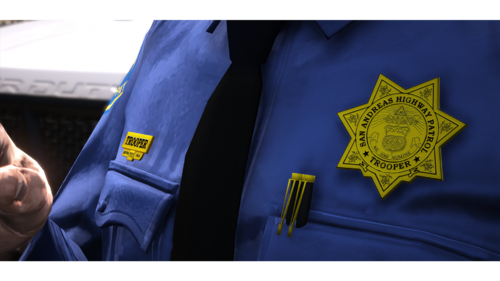 Very cool! You did a great job!
 -
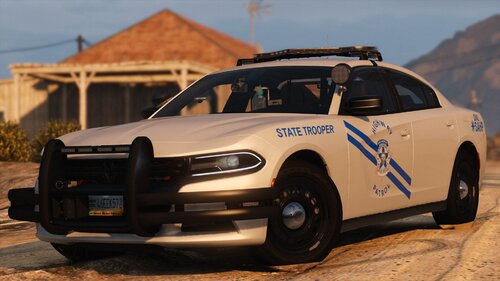 You may be low on memory. Maybe try spawning yourself out into the middle of nowhere and then trying spawning a vehicle.
- 175 comments
- 18 reviews
-
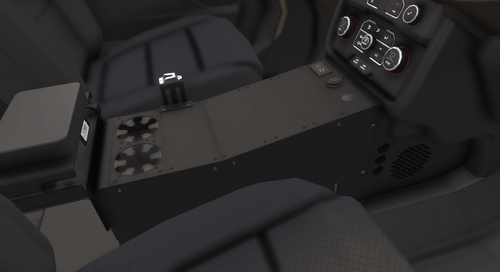 Another beautiful asset! Thank you!