
GTA 5 Jedi Master
Members
-
Joined
-
Last visited
Everything posted by GTA 5 Jedi Master
-
 Yet another EPIC release! Thank you, brother!
 -
This started as a random detection on random downloads from the site over the last couple of days. Today most downloads I've tried from only this site are triggering with the Wacatac.B!ml flag. I've noticed several other members posts stating this detection in their downloads as well. Is this a site issue or something else? My PC is clean and Im only getting these detections here. Any info would be appreciated. Thanks all!
-
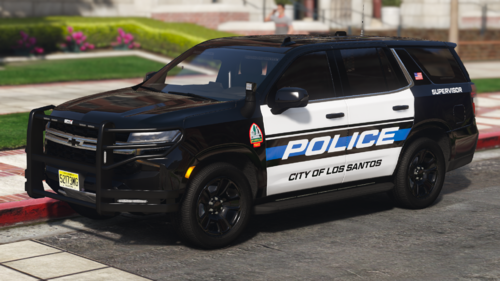 I got the EXACT warning on a different file download yesterday I downloaded containing the wacatac.b!ml file. I think its something the site is injecting. I honestly don't know though.
 -
 Thank you, brother! I didn't mean to insinuate it was your file that was an issue. Sorry. I was thinking it was the lcpdfr.com website itself more than anything. I just wasn't sure if you had any idea. Loving your work. Thanks for responding!
- 231 comments
- 31 reviews
-
This is strange. Downloaded 3 times, WACATAC present in the first 2 downloads but not the 3rd. No idea where it came from. It's clean, just wondering if its from LCDPFR site or somewhere else? Any ideas?
- 231 comments
- 31 reviews
-
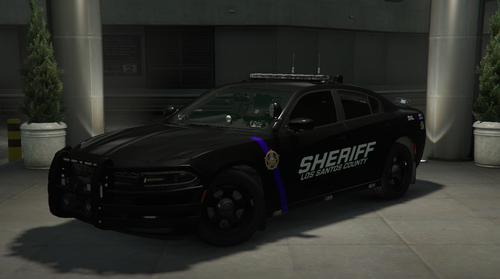 Sure. I use paint.net. Open the transparent file, click CTRL A to select all then hit CTRL X to erase the entire image but keep it in memory. Next, color the entire image black, then on top of the paint.net program select LAYER, then ADD A LAYER, then hit CTRL V. That'll paste the image on top of whatever base color you used. Then save as a .png file. Done. https://www.getpaint.net/download.html
 -
-
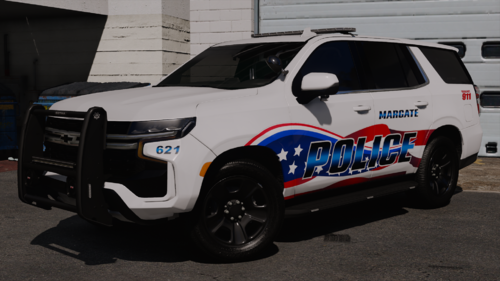 Great work, bro! Excellent model and equipment used to boot!
 -
 Check the SimpleHUD.ini file in the SCRIPTS folder. Open it and go to the bottom where it says: [MENU] ToggleKey=F10 ModifierKey=Shift MenuEnabled=False CHANGE: MenuEnabled to TRUE. When in-game press SHIFT+F10 and change the items you want to show in the menu there.....or in the .ini you just edited to turn them on and then adjust where they are shown in the in-game menu.
- 541 comments
- 26 reviews
-
NIGHTLY is for ScriptHookVDotNet - nightly version https://github.com/scripthookvdotnet/scripthookvdotnet-nightly/releases/tag/v3.6.0-nightly.60 Just a different SCRIPTHOOKDOTNET build. You should go with the STABLE version in the SimpleHUD download if you weren't sure which one to go with.
- 541 comments
- 26 reviews
-
-
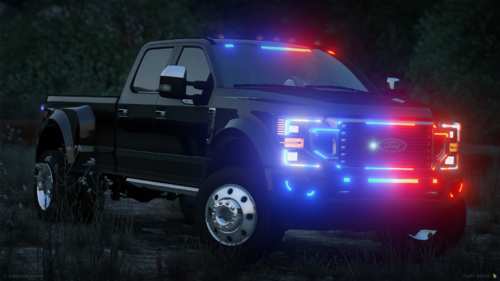 For ELS folks, it does work with a VCF file set to: <LstgActivationType>auto</LstgActivationType>
 -
EPIC vehicle! Yet another! Thank you, brother!
-
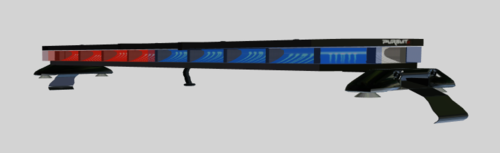 Very Bad ass! Thanks for releasing this!!!!
 -
Great vehicle! LOVE IT! For ELS folks, it does work with a VCF file set to: <LstgActivationType>auto</LstgActivationType>
-
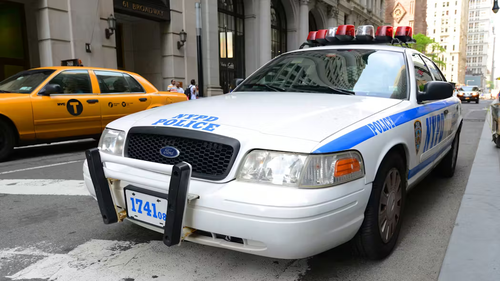 Nice work, brother!
 -
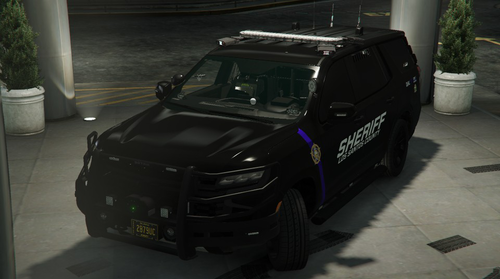 Excellent work! Only thing to add is the Code3 Xcel is upside down in the console. Bad ass ride though! One of the best!
- 61 comments
- 12 reviews
-
-
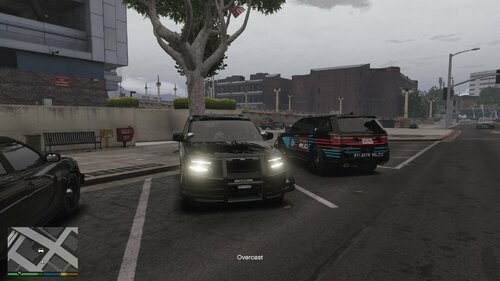 EXCELLENT work, brother! Was it meant to be Reflective? Great work overall!
 -
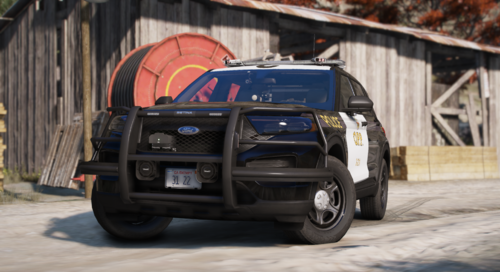 Excellent work! The FPIU is missing the GarminGPS textures from the .ytd though. Great job on these!
 -
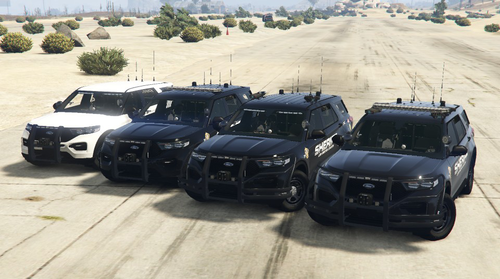 Great vehicle! Seriously looking forward to seeing more of your work here!
 -
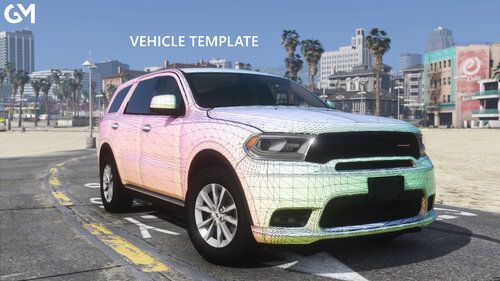 Hehehehe!
 -
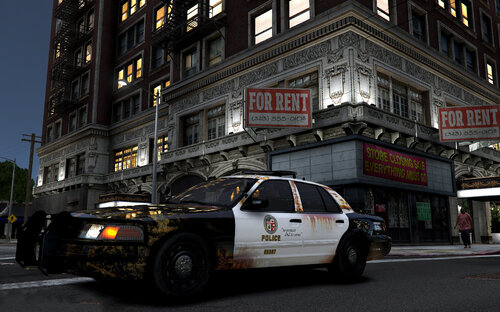 Gotta be honest, this is absolutely TITTIES awesome! LOVE IT!!!!!!
 -
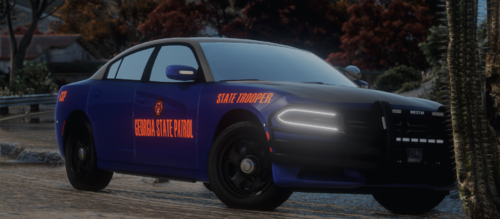 Excellent ride still! There still are a couple of corrupted files in new upload of the .ytd. The CONSOLE and PLASTICNORMAL files are corrupted but no biggie and the SIRENBOX texture has that typo needing to be renamed "siren box" for the Siren Controller. The ELS file has a typo that may be causing issues for some: <Extra01 IsElsControlled="true" AllowEnvLight="true" Color="true" OffsetX="-0.70" OffsetY="-0.20" OffsetZ="0.50" /> Not bitching, just passing it along. EXCELLENT work, bro! It's a super nice vehicle!!!
 -
 Sorry dude, I meant to say that this is a live Police scanner using Broadcastify responding your your earlier comment.
- 637 comments
- 51 reviews
-
-

- 1
-