





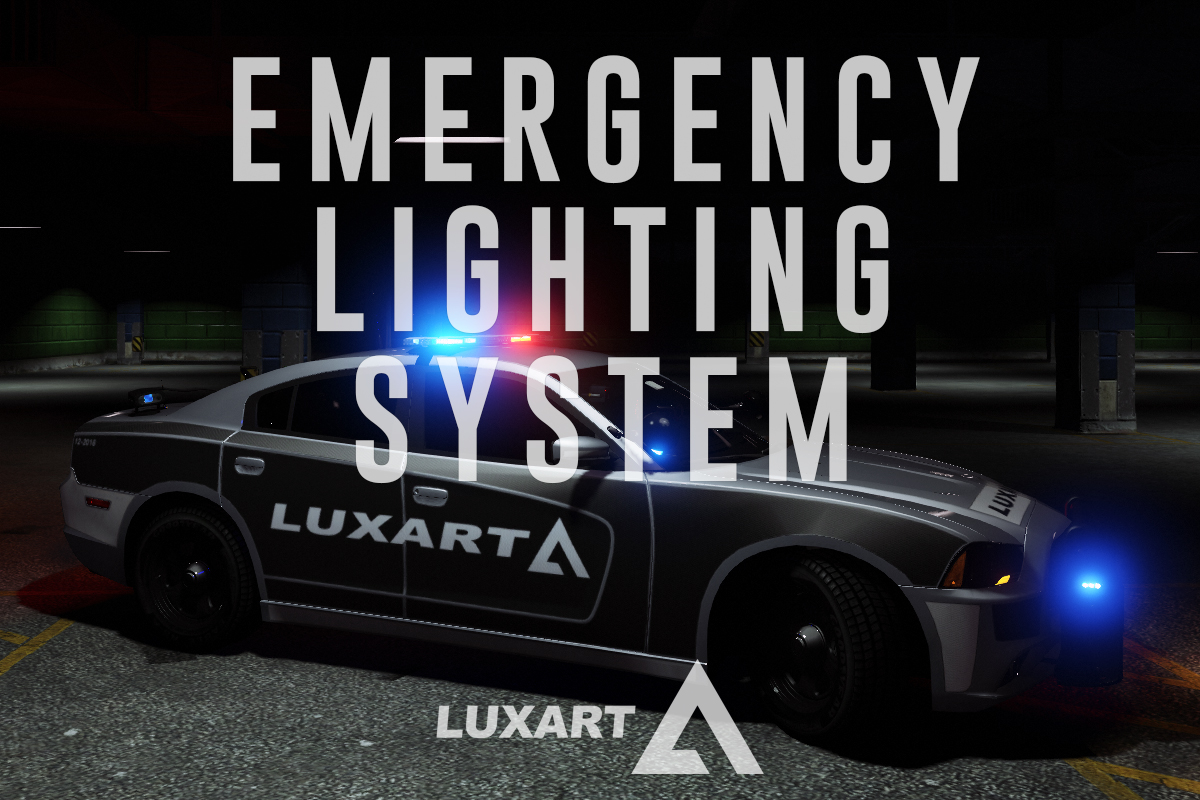

Emergency Lighting System V brings one of the most popular modifications ever created for a GTA title (ELS-IV) to Grand Theft Auto V. ELS-V will add a whole new dimension to your patrols. With a fresh look and many more features than its predecessor, it's also sure to brighten up your game and satisfy the emergency lighting enthusiast in anyone.
DESCRIPTION
− ELS provides an alternate and incredibly in-depth way of controlling emergency vehicle lights and sounds.
− ELS requires vehicle models specifically designed to make use of its features.
− ELS includes over 200 unique lighting patterns scattered across 4 light groups and lighting formats.
NOTES
− Please consult the ELS USER GUIDE and other provided documentation prior to using ELS.
− As of V1.00 ELS is not compatible with any form of multiplayer.
− A visual enhancement mod is recommended to improve the appearance of ELS lights in game.
BASIC INSTALLATION
− A GTAV ScriptHook must be installed for any .asi modification to work. The original may be found HERE.
− Using script modifications in GTA Online can result in a temporary or permanent ban from the service.
− 1. Place ELS.asi, ELS.ini, the ELS folder, and AdvancedHookV.dll inside your main GTA V game directory.
− 2. Download and install (a) pro-ELS vehicle model(s).
− 3. Start your game.
CREDITS
− ELS is coded by Lt.Caine.
− AdvancedHookV and vehicle damage feature coded by LMS.
− ELS-V testing team (alphabetical order): Albo1125, BxBugs123, GravelRoadCop, PoliceWag, and Prophet.
What's New in Version 1.05
Released
- Removed auto deletion of discarded ELS vehicles to prevent crashes when using certain LSPDFR plugins.
- Removed ELS manipulation of AI vehicles as persistent/not persistent for same reason.
- Removed strobe corona flash sounds (while retaining sound effects for halogen patterns).
- Toggling the ELS information panel will now reload everything in the ELS.ini.
- Fixed error in ELS User Guide that incorrectly associated SCNL with extra_11 and TKDL with extra_12 (the opposite is true).
- Updated ELS User Guide to reflect new changes.
- ELS.ini change: Added "AllowController" option to CONTROL section to allow enabling/disabling controller input for ELS.
- ELS.ini change: Added "TogKeysLock" option to CONTROL section to allow changing ELS key lock button.
Please download the AdvancedHookV fix if you are using game build 3258.
LMS






![San Andreas State Police EUP Package [ADDON & REPLACE]](http://s3-screenshots.int-cdn.lcpdfrusercontent.com/resize/500/-/monthly_2026_06/Screenshot2026-06-08203439.thumb.png.29bdbd37686c4d228bc72af27eb63202.png)


![[ELS][REPLACE] Škoda Kodiaq 2022 Czech Police with ram](http://s3-screenshots.int-cdn.lcpdfrusercontent.com/resize/500/-/monthly_2026_06/20260608220206_1.thumb.jpg.cadf7c0c040b4cdd87f227196b646eeb.jpg)



Recommended Comments
Create an account or sign in to comment