


Multigaming_UK
2021 Skoda Superb Estate PSNI Marked
2021 Skoda Superb Estate PSNI ANPR
2021 Skoda Superb Estate PSNI Antenna
Installation Guide
Drag and drop the files included in the "Model Files" folder to the latest patchday.
Then drag and drop the ELS file included into your ELS/packdefault folder.
I recommend that you use Albo1125's Modding DLC Pack V for an easier install. For
installation guide included in that download.
Credits
• Model - Squir
• lowered - Raddz Modding
• Converted to GTAV - JamesR/ Eric (BritishGamer88)
• Template - Eric (BritishGamer88)
• Skin - Rozzer Mods
• Equipment - JamesR
- StateZero
• - Textures edited Multigaming_UK
• Interior - Multigaming_UK
If any credits are missing and/or wrong, please contact me via my discord server.
You must not use this model on a FiveM Server or for a Roleplay Community without prior permission
being given. You can obtain this by contacting me via discord.
Edited by MultiGamingUK
Short Description
2021 Skoda Superb Estate PSNI Marked
2021 Skoda Superb Estate PSNI ANPR
2021 Skoda Superb Estate PSNI Antenna
Installation Guide
Drag and drop the files included in the "Model Files" folder to the latest patchday.
Then drag and drop the ELS file included into your ELS/packdefault folder.
I recommend that you use Albo1125's Modding DLC Pack V for an easier install. For
installation guide included in that download.
Credits
• Model - Squir
• lowered - Raddz Modding
• Converted to GTAV - JamesR/ Eric (BritishGamer88)
• Template - Eric (BritishGamer88)
• Skin - Rozzer Mods
• Equipment - JamesR
- StateZero
• - Textures edited Multigaming_UK
• Interior - Multigaming_UK
If any credits are missing and/or wrong, please contact me via my discord server.
You must not use this model on a FiveM Server or for a Roleplay Community without prior permission
being given. You can obtain this by contacting me via discord.
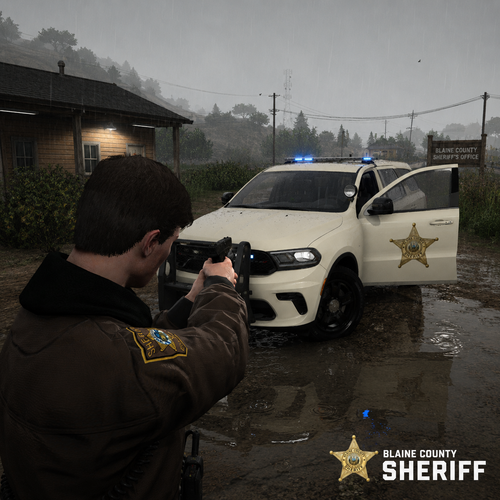

![[PL] Motoambulans - BMW R 1200RT](http://s3-screenshots.int-cdn.lcpdfrusercontent.com/resize/500/-/monthly_2026_05/Zrzutekranu2026-05-24204701.thumb.png.021f3679ae041bf19941ec0436deab39.png)
![[PL] Pojazd Operacyjny ASR (Ambulans Szybkiego Reagowania) - Audi Q7](http://s3-screenshots.int-cdn.lcpdfrusercontent.com/resize/500/-/monthly_2026_05/Zrzutekranu2026-05-24204615.thumb.png.ad7dc0bd99f4aabca3558e39f5f70d11.png)
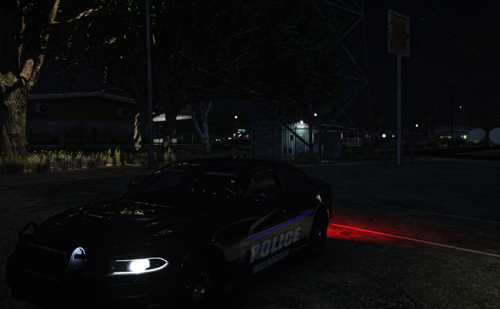
![Federal Signal Valor 2020 Ford Explorer [N-ELS]](http://s3-screenshots.int-cdn.lcpdfrusercontent.com/resize/500/-/monthly_2026_05/Screenshot2026-05-24114013.thumb.png.8741ddf467a66c5b080784c21c365c95.png)
![[PL] Pojazd Operacyjny ASR (Ambulans Szybkiego Reagowania) - Volvo XC90](http://s3-screenshots.int-cdn.lcpdfrusercontent.com/resize/500/-/monthly_2026_05/Zrzutekranu2026-05-24172326.thumb.png.88057a1bfb4a88be5cd2e8c4568a5271.png)
![[PL] Pojazd Ratowniczy GOPR - Volkswagen Amarok](http://s3-screenshots.int-cdn.lcpdfrusercontent.com/resize/500/-/monthly_2026_05/Zrzutekranu2026-05-24165655.thumb.png.ba50fc8bd539ba5d7c995f61b6bea61c.png)
![[PL] Pojazd Operacyjny LPR (Lotnicze Pogotowie Ratunkowe) - Volvo XC90](http://s3-screenshots.int-cdn.lcpdfrusercontent.com/resize/500/-/monthly_2026_05/Zrzutekranu2026-05-24164319.thumb.png.42cbc81ed73b0b6a6b914dbb1d664ebe.png)
![[PL] Polski Ambulans - Volkswagen Transport](http://s3-screenshots.int-cdn.lcpdfrusercontent.com/resize/500/-/monthly_2026_05/Zrzutekranu2026-05-24162709.thumb.png.ea7671a4d962299cfa6678024fb16aee.png)
![[PL] Polski Ambulans - Mercedes Sprinter](http://s3-screenshots.int-cdn.lcpdfrusercontent.com/resize/500/-/monthly_2026_05/Zrzutekranu2026-05-24161527.thumb.png.496ea823ecf0277eda9a42bd0dfc50e4.png)
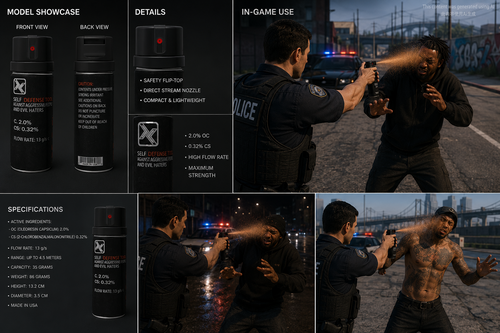
![[PL] Pojazd do Transportu Krwi - Tesla Model X](http://s3-screenshots.int-cdn.lcpdfrusercontent.com/resize/500/-/monthly_2026_05/Zrzutekranu2026-05-24144805.thumb.png.1f682f232fdf0bad03929c6888410b40.png)
![[PL] Polska Karetka Pogotowia - Volkswagen Crafter 2019](http://s3-screenshots.int-cdn.lcpdfrusercontent.com/resize/500/-/monthly_2026_05/Zrzutekranu2026-05-24153822.thumb.png.4eb4120865c9ae6dd0ae76f1140c67cb.png)
![[PL] Polska Karetka Pogotowia - Mercedes sprinter 2011](http://s3-screenshots.int-cdn.lcpdfrusercontent.com/resize/500/-/monthly_2026_05/Zrzutekranu2026-05-24151217.thumb.png.2ed578eb505c70f831f2cce668083633.png)
Recommended Comments
Create an account or sign in to comment