


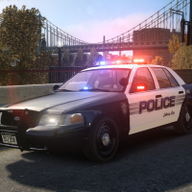


Installation:
Put the police.wft and police.wtd into your vehicles.img.
Credits:
- Model is Chevrolet Impala from Driver SF, modified for and converted to GTA IV by Cj24.
- Whelen Liberty lightbar made by KevinDV.
- Inside Police Equipment made by Lt.Caine.
- Spotlight made by Cj24.
- Rambar by Bxbugs123.
- Liveries made by Cj24.
Files included:
- police.wtd
- police.wft
- readme.txt
- template.png
- pic (1).jpg
- pic (2).jpg
- pic (3).jpg
It is forbidden to upload this or a modified version for public without permission. Changing textures is allowed for personal use.
![[PL] Pojazd Operacyjny LPR (Lotnicze Pogotowie Ratunkowe) - Volvo XC90](http://s3-screenshots.int-cdn.lcpdfrusercontent.com/resize/500/-/monthly_2026_05/Zrzutekranu2026-05-24164319.thumb.png.42cbc81ed73b0b6a6b914dbb1d664ebe.png)
![[PL] Polski Ambulans - Volkswagen Transport](http://s3-screenshots.int-cdn.lcpdfrusercontent.com/resize/500/-/monthly_2026_05/Zrzutekranu2026-05-24162709.thumb.png.ea7671a4d962299cfa6678024fb16aee.png)
![[PL] Polski Ambulans - Mercedes Sprinter](http://s3-screenshots.int-cdn.lcpdfrusercontent.com/resize/500/-/monthly_2026_05/Zrzutekranu2026-05-24161527.thumb.png.496ea823ecf0277eda9a42bd0dfc50e4.png)
![[PL] Pojazd do Transportu Krwi - Tesla Model X](http://s3-screenshots.int-cdn.lcpdfrusercontent.com/resize/500/-/monthly_2026_05/Zrzutekranu2026-05-24144805.thumb.png.1f682f232fdf0bad03929c6888410b40.png)
![[PL] Polska Karetka Pogotowia - Volkswagen Crafter 2019](http://s3-screenshots.int-cdn.lcpdfrusercontent.com/resize/500/-/monthly_2026_05/Zrzutekranu2026-05-24153822.thumb.png.4eb4120865c9ae6dd0ae76f1140c67cb.png)
![[PL] Polska Karetka Pogotowia - Mercedes sprinter 2011](http://s3-screenshots.int-cdn.lcpdfrusercontent.com/resize/500/-/monthly_2026_05/Zrzutekranu2026-05-24151217.thumb.png.2ed578eb505c70f831f2cce668083633.png)
![CHP Stealth Dodge Durango [4K]](http://s3-screenshots.int-cdn.lcpdfrusercontent.com/resize/500/-/monthly_2026_05/Screenshot_2769.thumb.png.543fa7232b30064f0b5eb744232182aa.png)


Recommended Comments
Create an account or sign in to comment